Shopify
Shopify Integration
The Shopify Integration in JustBilling allows the business to connect its JB product catalog, pricing, and inventory with a Shopify online store. This synchronization helps in managing products efficiently from a single platform.
Accessing Shopify Integration
Navigate to:
Menu → Integrations → Shopify
Here, you will see the configuration screen with multiple tabs:
- Configuration
- Subscription
- Map Products
- Sync History
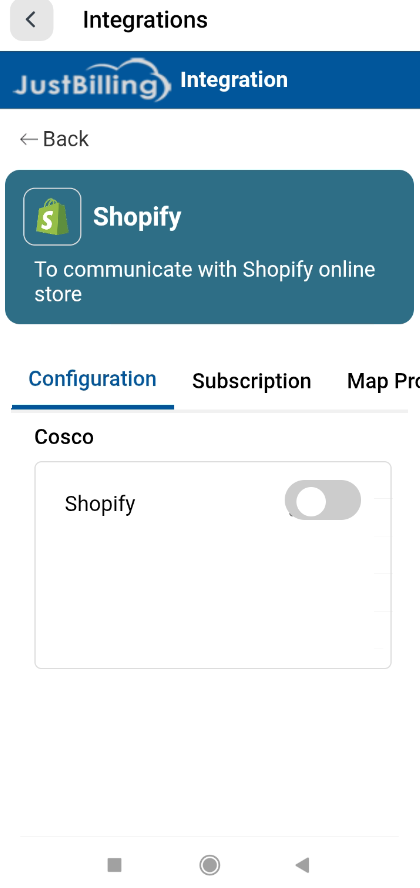
(Figure-1- Shopify Configuration)
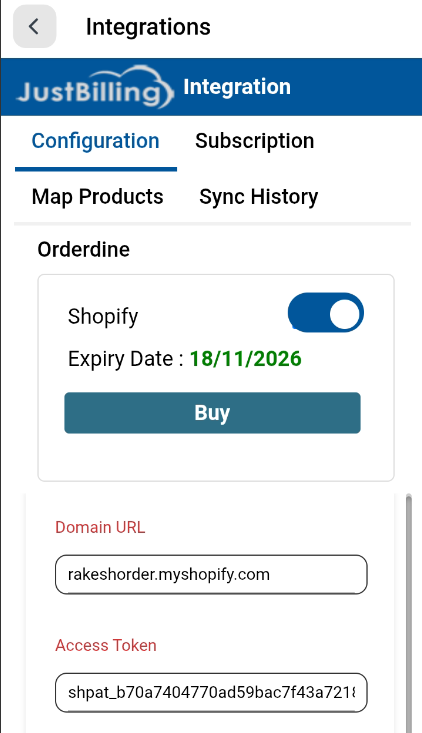
Enable Shopify Integration
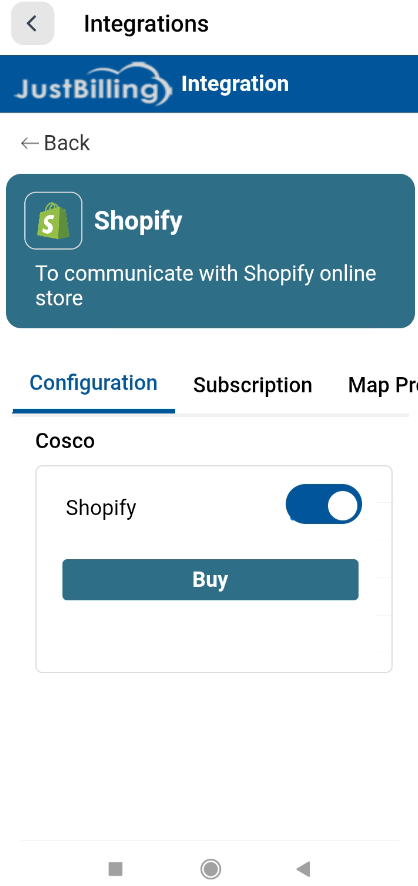
(Figure-2- Shopify Configuration)
- Toggle the Shopify switch ON to activate the integration for the selected branch.
- Once enabled, you can configure and sync Shopify settings for the store.
If the subscription is not active, the system prompts you to purchase a plan.
Subscription Purchase / Renewal
Buy/Renew Subscription Popup
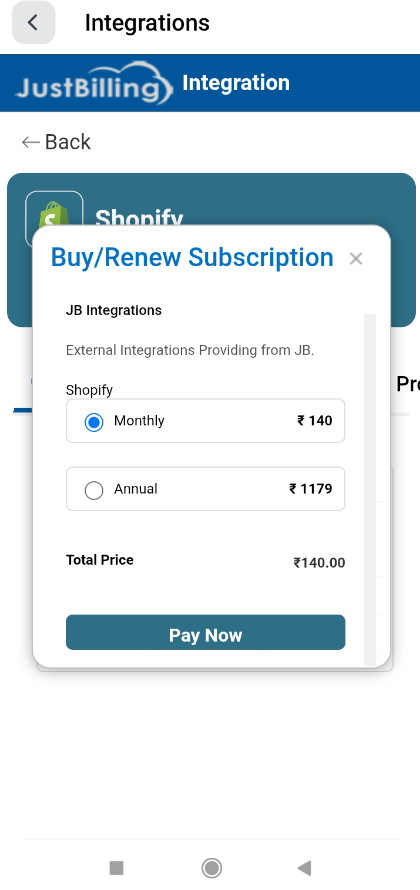
(Figure-3- Shopify Configuration)
When you click Buy, a subscription popup appears:
Available Plans:
- Monthly Plan – ₹140
- Annual Plan – ₹1179
The total amount is shown at the bottom.
Steps:
- Select Monthly or Annual.
- Click Pay Now → You will be redirected to the payment screen.
Payment Gateway Flow
When initiating the subscription payment, the system redirects to the secure payment gateway (Razorpay/UPI).
Enter Customer Details
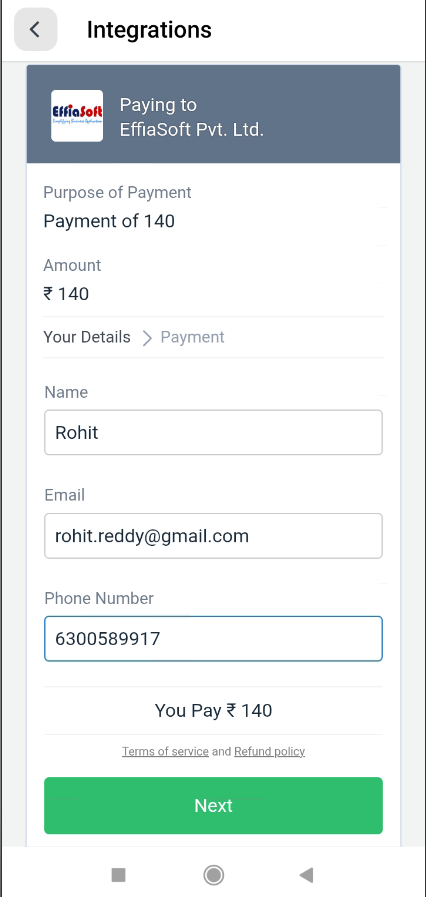
(Figure-4- Shopify Configuration)
Fields:
- Name
- Phone Number
Click Next to proceed.
Choose Payment Method
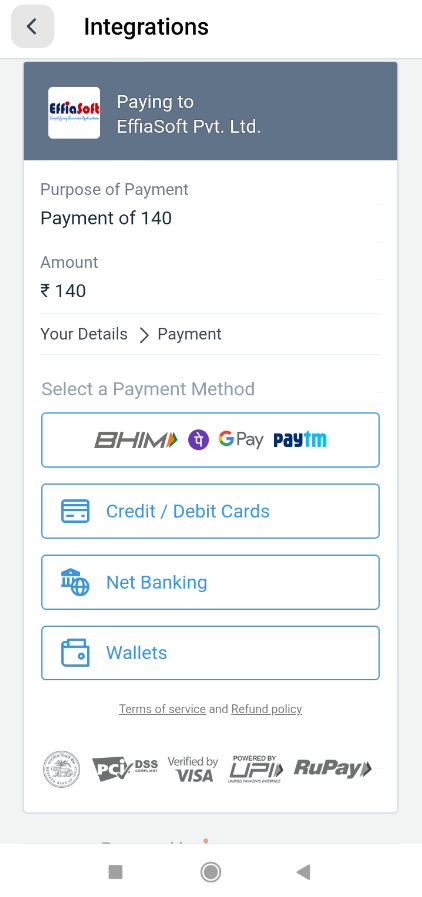
(Figure-5- Shopify Configuration)
Available options:
- UPI (BHIM, Google Pay, Paytm)
- Credit/Debit Card
- Net Banking
- Wallets
After payment is completed, the subscription is activated automatically.
Active Subscription View
Once the payment is successful:
- The Shopify toggle will remain ON.
- You can use Map Products and Sync options
Map Products Tab
Used for mapping JB products with Shopify products to keep catalog in sync.
(Figure-6- Shopify Configuration)
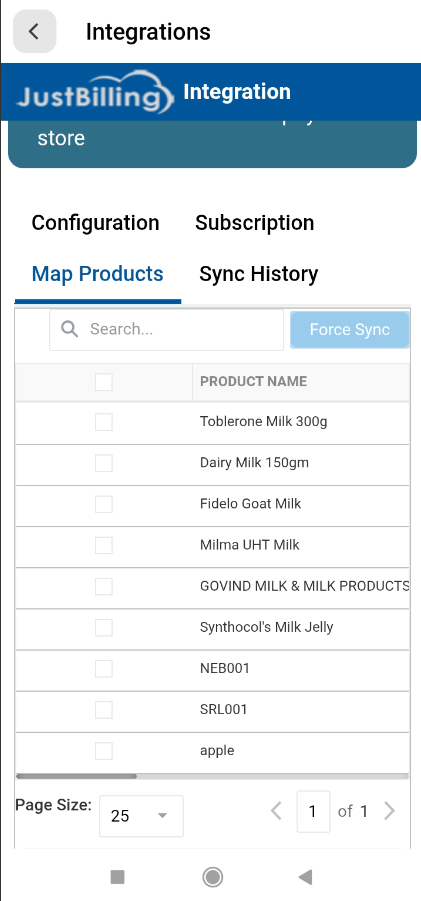
(Figure-7- Shopify Configuration)
Sync History Tab
Displays:
- Sync id
- Sync count
- Sync Start time
- Sync end time
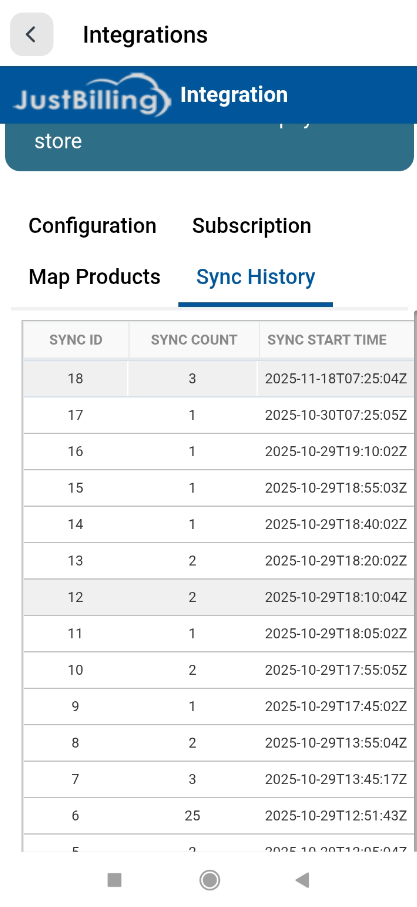
(Figure-8- Shopify Configuration)
Overview
The Shopify Integration module enables seamless communication between JustBilling and a Shopify online store. This integration allows businesses to:
- Sync products from JustBilling to Shopify
- Map Shopify locations to JustBilling branches
- Automatically sync inventory and prices
- Push dispatch and delivery updates to Shopify
- Track synchronization history and responses
Navigation Path
Path:
Masters → Administration → My Organization
Shopify Integration Tabs
The Shopify integration screen consists of the following tabs:
- Configuration
- Map Products
- Sync History
Each tab handles a specific part of the integration workflow.
Configuration Tab
The Configuration tab is used to connect JustBilling with a Shopify store and configure sync behavior.
Enable Shopify Integration
|
Field |
Description |
|
Shopify Toggle |
Enables or disables Shopify integration for the selected branch |
- When enabled, Shopify-related configuration fields become editable.
- When disabled, all Shopify synchronization features are paused.
Store Connection Details
|
Field |
Description |
|
Domain URL |
Shopify store domain (example: yourstore.myshopify.com) |
|
Access Token |
Shopify private app access token used for authentication |
Steps:
- Enter the Shopify store Domain URL
- Paste the Access Token generated from Shopify Admin
- Click Save to establish the connection
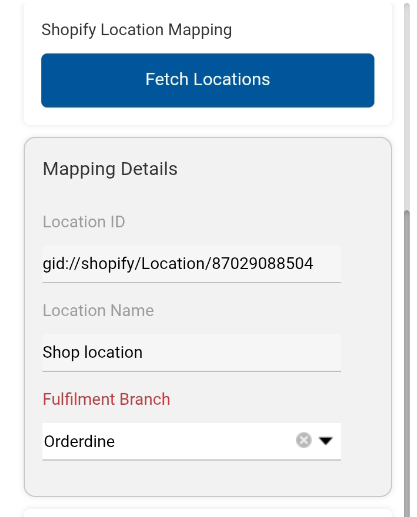
Shopify Location Mapping
This section maps Shopify fulfillment locations with JustBilling branches.
Fetch Locations
|
Button |
Description |
|
Fetch Locations |
Retrieves all locations configured in Shopify |
Mapping Details
|
Field |
Description |
|
Location ID |
Unique Shopify location identifier |
|
Location Name |
Name of the Shopify store location |
|
Fulfillment Branch |
Corresponding JustBilling branch for order fulfillment |
Purpose:
Ensures that orders received from Shopify are fulfilled from the correct JustBilling branch.
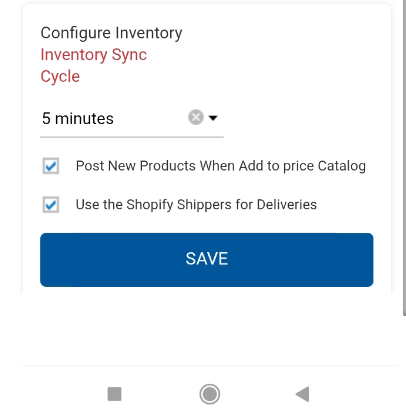
Inventory Configuration
Inventory Sync Cycle
|
Field |
Description |
|
Inventory Sync Cycle |
Time interval for automatic inventory sync |
Example:
- 5 minutes → Inventory updates are pushed every 5 minutes
Inventory Options
|
Option |
Description |
|
Post New Products When Added to Price Catalog |
Automatically posts newly added products to Shopify |
|
Use Shopify Shippers for Deliveries |
Enables Shopify-managed delivery and dispatch updates |
Use Shopify Shippers for Deliveries (Important)
When the “Use Shopify Shippers for Deliveries” checkbox is selected:
Confirmation Popup
A confirmation dialog is displayed with the message:
“Dispatch Information Will Be Pushed to Shopify”
|
Button |
Action |
|
Yes |
Confirms and enables dispatch information sync to Shopify |
|
No |
Cancels the action and keeps the option disabled |
Functional Impact
- When enabled:
- Dispatch and delivery status updates from JustBilling are pushed to Shopify
- Shopify handles shipment tracking and delivery notifications
- When disabled:
- Delivery information is managed only within JustBilling
⚠️ Note:
Once enabled, Shopify becomes the source of truth for delivery tracking.