SMS Kaleyra
SMS Kaleyra Integration
Overview
The SMS Kaleyra integration allows JustBilling users to send transactional SMS notifications such as order confirmations, OTPs, delivery updates, and other customer messages directly from the POS system.
This module includes:
- Enabling the SMS service
- Viewing available SMS balance
- Purchasing additional SMS credits
- Viewing subscription details
Accessing SMS Kaleyra Integration
- Go to Integrations from the main menu.
- Select SMS Kaleyra from the list of available integrations.
You will see the Configuration and Subscription tabs.
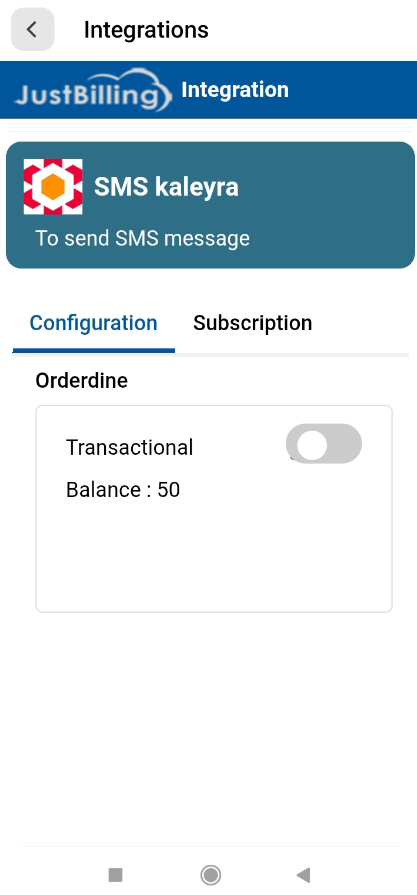
(Figure-1- SMS Kaleyra Configuration)
Configuration Screen
Toggle SMS Kaleyra ON/OFF
- The main switch enables or disables SMS integration.
- When set to OFF, SMS service will not work.
- When set to ON, the Kaleyra SMS gateway becomes active.
Displayed Information
- Balance: Shows the remaining SMS balance (e.g., 89).
- This balance reduces as SMS notifications are sent.
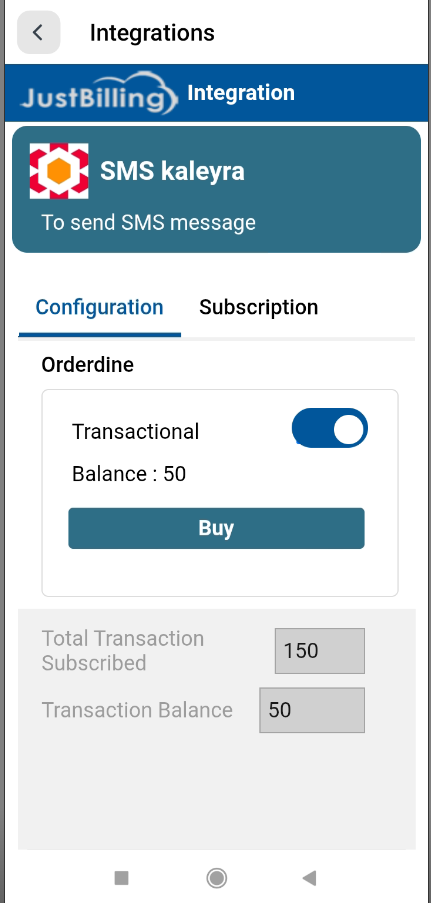
(Figure-2- SMS Kaleyra Configuration)
Subscription Screen
This tab shows your current SMS package and provides an option to buy more SMS credits.
Subscription Details Displayed
- Total Transaction Subscribed: Shows total number of SMS purchased till date.
Example shown: 200 - Transaction Balance: Shows remaining SMS credits.
Example shown: 89
Buying or Renewing SMS Subscription
Click the Buy button to purchase additional SMS credits.
Buy/Renew Subscription Popup
A subscription popup appears with the following options:
Quantity Selection
- You can increase or decrease the SMS quantity using:
- “–” button to reduce
- “+” button to increase
- Manual entry is also allowed.
Pricing Details
- Price: Displays price for the selected SMS quantity
Example: ₹2959 - Total Price: Updates dynamically based on the chosen quantity.
Payment Button
- Click Pay Now to proceed with payment.
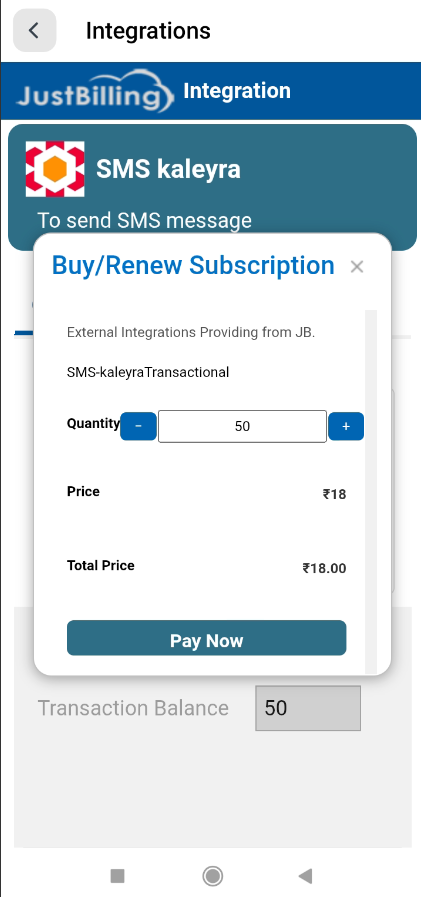
(Figure-3- SMS Kaleyra Configuration)
Payment Flow (Razorpay Screen)
Once you click Pay Now, the system redirects to the Razorpay payment window.
Payment Summary
You will see:
- Merchant: EffiaSoft Pvt. Ltd.
- Purpose of payment
- Amount to pay (e.g., ₹2,959)
Enter Customer Details
Fields required:
- Name
- Phone Number
Click Next to continue.
Choose Payment Method
You can choose any payment method:
- UPI (BHIM, Google Pay, Paytm)
- Credit/Debit Cards
- Net Banking
- Wallets
After successful payment, the SMS credits are automatically added to your Kaleyra account.
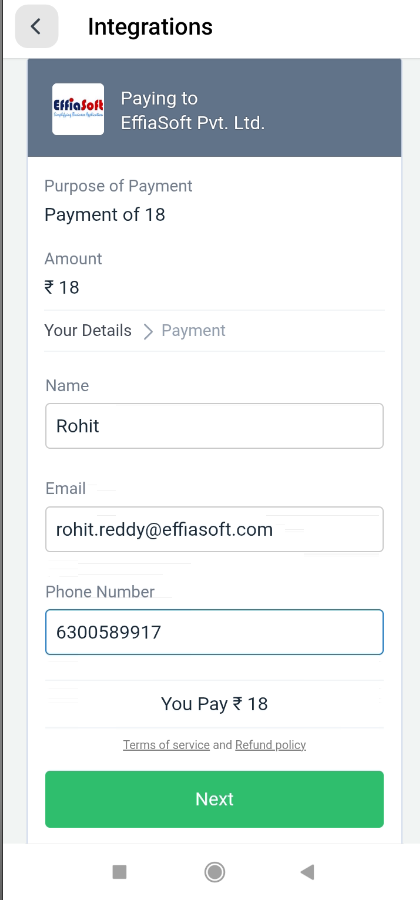
(Figure-4- SMS Kaleyra Configuration)
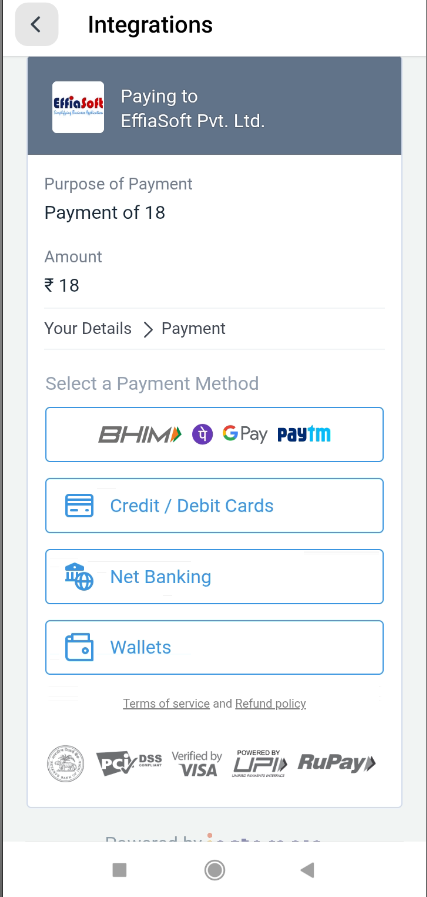
(Figure-5- SMS Kaleyra Configuration)
After Purchase
Once the payment is completed:
- The SMS Transaction Balance gets updated.
- The Total Transaction Subscribed increases accordingly.
- The updated balance becomes visible immediately under the Subscription tab.