PhonePe Instore
PhonePe Instore Integration
The PhonePe Instore integration allows merchants to collect payments using the PhonePe Instore Request method. This feature enables the POS system to initiate a payment request directly to the customer via PhonePe, making the checkout fast, secure, and seamless.
This guide explains how to enable PhonePe Instore, configure credentials, and save the integration settings.
Navigating to PhonePe Instore Integration
- Go to Menu → Integrations.
Select the PhonePe Instore tile.
Click Manage to open the configuration page.
You will now see the PhonePe Instore configuration section.
Enabling PhonePe Instore
At the top-left of the screen, a toggle switch is displayed.
- Toggle OFF → PhonePe Instore is disabled
(Default state when no configuration is set)
Toggle ON → Enables PhonePe Instore settings and displays configuration fields
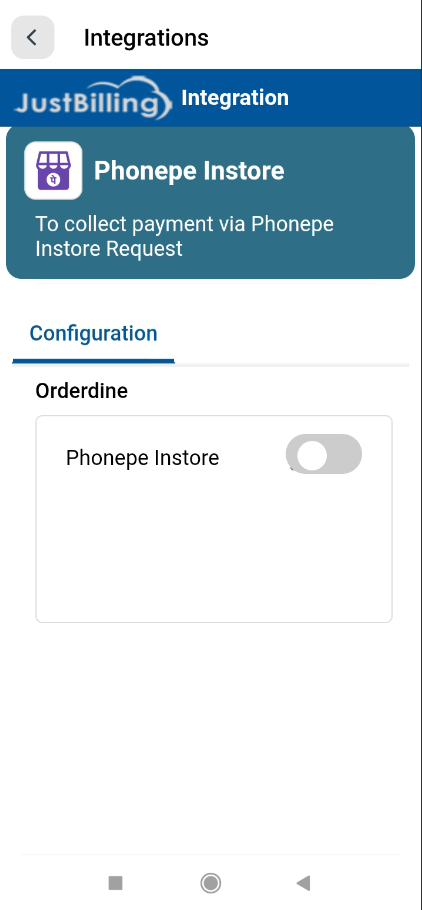
(Figure-1- Phone Pe In-Store Configuration)
PhonePe Instore Configuration Fields
Once the toggle is switched ON, the system displays the configuration fields:
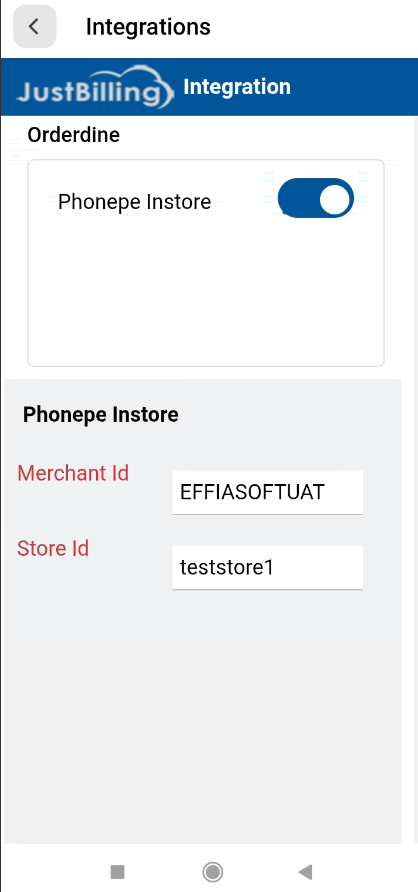
(Figure-2- Phone Pe In-Store Configuration)
Merchant ID
This is the unique merchant identifier provided by PhonePe.
It must be entered exactly as shared by the PhonePe onboarding team.
This field links your store’s transactions with your PhonePe merchant account.
Store ID
A unique ID assigned to the specific store/branch.
Helps PhonePe differentiate between payment requests from multiple store outlets.
Allows centralized reporting of each store’s payment activity.
Saving PhonePe Instore Settings
After entering the Merchant ID and Store ID:
- Click the Save button located at the bottom-right corner.
- The system validates the fields.
- On successful save, a confirmation popup appears:
✔ “Saved successfully”
This confirms that your PhonePe Instore integration is now active and ready to use.
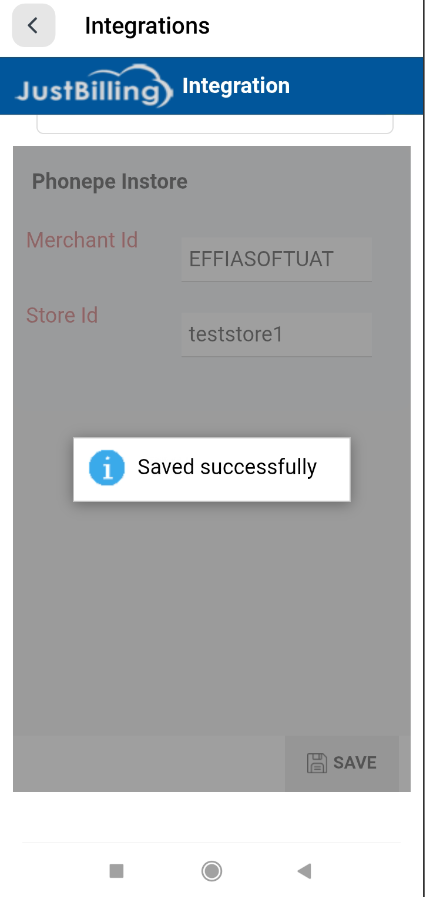
(Figure-3- Phone Pe In-Store Configuration)
How PhonePe Instore Works After Configuration
Once configured:
- PhonePe Instore becomes available as a payment method during billing.
- The system sends a payment request to the customer's PhonePe app.
- Customers can complete the payment instantly through UPI/PhonePe.
- The final payment status (Success/Failed) is automatically updated in JustBilling