Stripe M2
Stripe M2 Integration (Android & iOS)
This section explains how to configure and enable Stripe M2 Device integration in the JustBilling POS application for Android and iOS platforms to collect card payments using Stripe M2 hardware devices.
Overview
Stripe M2 integration allows merchants to accept in-store card payments using Stripe M2 payment devices connected to Android or iOS POS applications. Once configured, the M2 device communicates securely with Stripe to process transactions in real time.
Accessing Stripe M2 Integration
- Navigate to JustBilling → Integration.
- Select Stripe (M2 Device) from the available integrations.
- The Stripe M2 configuration screen is displayed.
Screen Components:
- Stripe M2 integration banner
- Configuration tab
- Stripe M2 enable/disable toggle
- Stripe M2 configuration fields
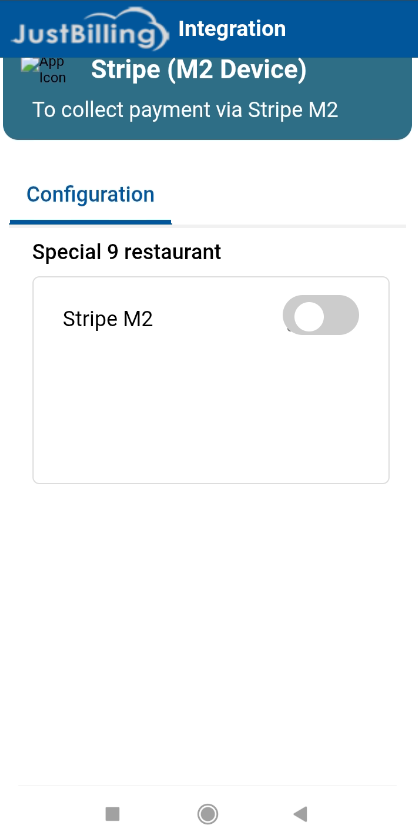
( Figure-1-Stripe (M2 Device)

( Figure-2-Stripe (M2 Device)
Enabling Stripe M2 for a Restaurant
Steps to enable Stripe M2:
- Locate the Stripe M2 toggle switch.
- Turn the toggle ON to enable Stripe M2 payments for the selected restaurant.
Note:
When Stripe M2 is disabled, M2 configuration fields are hidden and the device cannot be used for payments.
Stripe M2 Configuration Details
Once Stripe M2 is enabled, the configuration section becomes visible.
Required Fields
|
Field Name |
Description |
|
Location ID |
Stripe Location ID linked to the physical store or terminal |
|
Secret Key |
Stripe Secret API Key used to authenticate payment requests |
Configuring Stripe M2 Credentials
Steps to configure Stripe M2:
- Obtain the Location ID from the Stripe Dashboard (associated with the physical store).
- Enter the Location ID in the corresponding field.
- Enter the Secret Key provided by Stripe.
- Verify that both values are correct.
- Save the configuration (if applicable).
Important:
- Ensure the Location ID matches the Stripe M2 device location.
- The Secret Key must be kept confidential.
- Use Test keys for UAT and Live keys for production.
Platform Behavior (Android & iOS)
After successful configuration:
- Stripe M2 device becomes available in the POS payment screen
- Android and iOS POS applications can connect to the M2 device
- Customers can tap, insert, or swipe cards (based on device capability)
- Payment status is displayed in the POS application in real time
Disabling Stripe M2 Integration
To disable Stripe M2:
- Navigate to Stripe (M2 Device) configuration.
- Turn the Stripe M2 toggle switch OFF.
- Stripe M2 will no longer be available as a payment option in the POS app.
Behavior After Successful Setup
Once Stripe M2 is enabled and configured:
- M2 device is initialized during POS login
- Card payments are processed securely via Stripe
- Transactions are recorded in payment reports
- Payment confirmation is shown on both device and POS screen
Important Notes
- Stripe M2 devices require active internet connectivity
- Location ID must be correctly mapped to the physical outlet
- Invalid credentials may cause device connection failure
- Android and iOS apps must have the required Stripe SDK versions