QR Menu


The QR Menu feature allows merchants to provide customers with a digital menu that can be scanned, browsed, and used for placing orders and making payments.

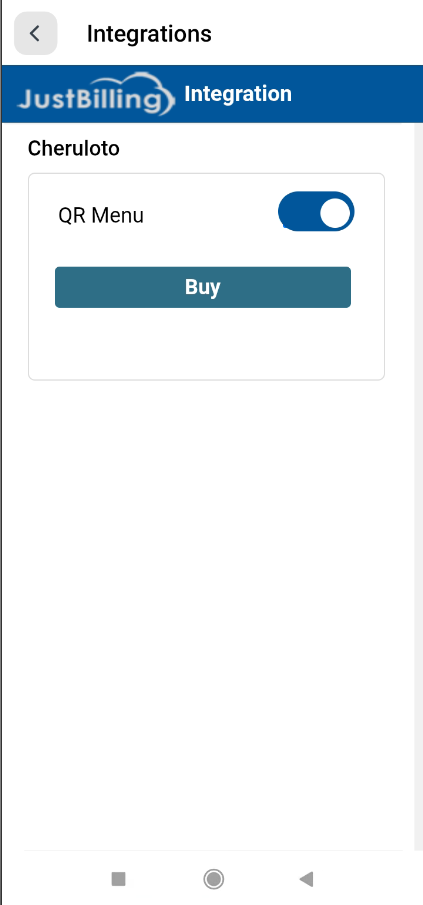
To navigate to the QR Menu, user needs to select Side Menu-->Configuration-->Application Settings and select QR Menu Tab.

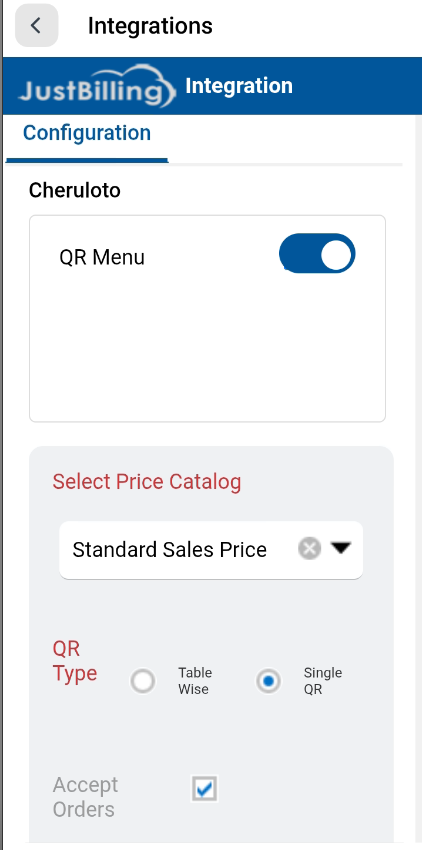
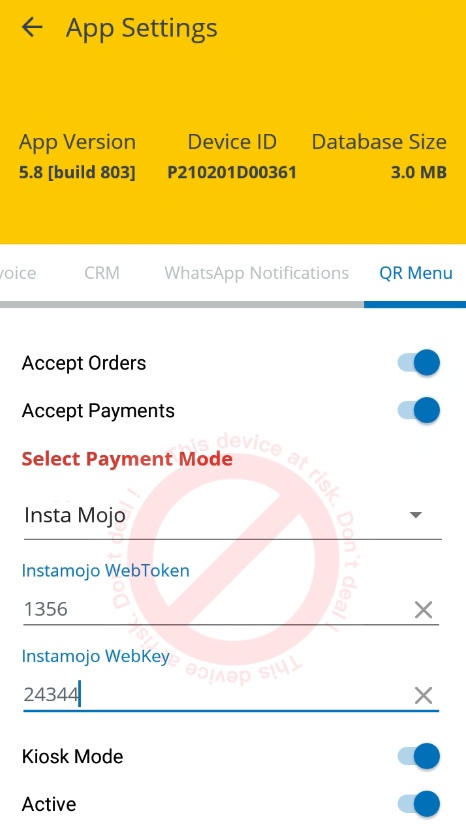
On selecting QR Menu tab below are the fields displayed as per the screenshot.


                                                                                            (Figure 1 - QR Menu Details Screen)


How to configure QR menu fields?

1.Select Price Catalog

2.Select QR Type

3.Accept Orders

4.Select Active

5.Select Accept Payments

6.Select Payment Mode

7.Enter InstaMojo Web Token

8.Enter InstaMojo Web Key

9.Select Kiosk Mode

10.Select Save Button

11.Select Print QR codes

12.Select Download Button


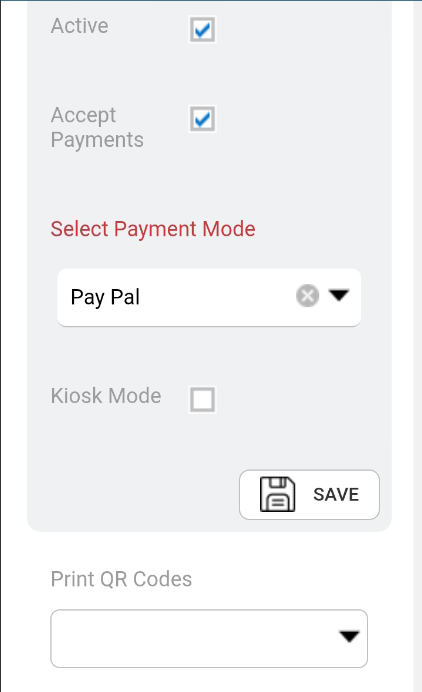
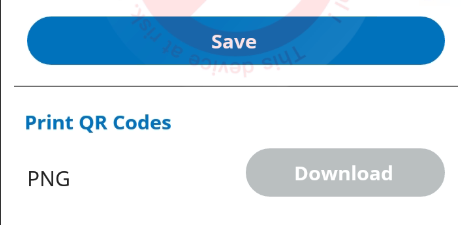
                                                                                    (Figure 2 - QR Menu Details Screen)


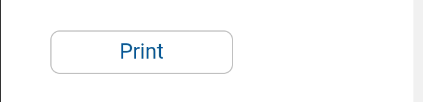
From the above screen on selecting Payments the remaining fields Select Payment Mode, Instamojo Web token,Instamoji Web key and Kiosk Mode are enabled. Based on the requirement the fields are selected. And on selecting save button the Print QR codes are enabled, where user selects the Print QR codes type and selects the download button.


Process for QR Menu billing


From the configuration process, on downloading the QR code. Here User can scan the QR code and proceed by selecting the menu.


Below is the QR code.
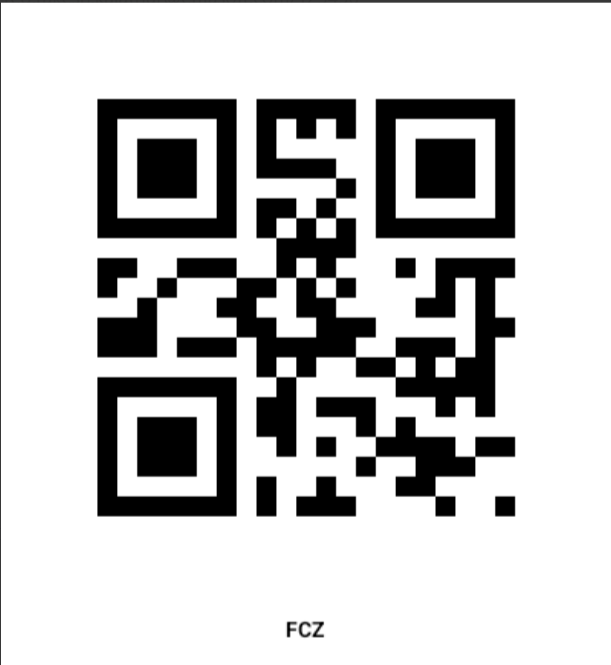


                                                                          ( Figure-1-QR code)

On scanning the QR code user can view the order items and proceed for the order confirmation and pay as per the configuration.


Below is the screenshot for the order items.
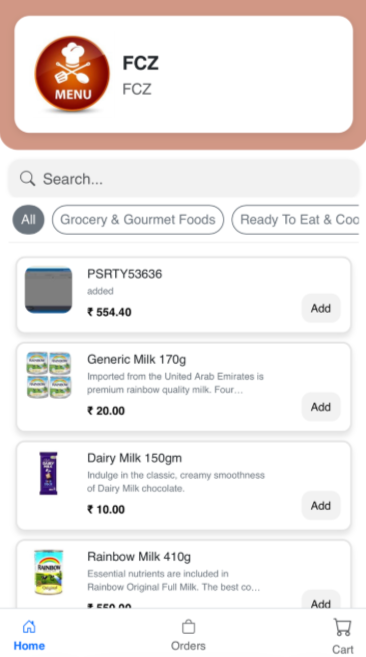

                                                 
                                                                         (Figure 2-QR Menu Products)


From the above screenshot add any items and the items will be added to the cart.
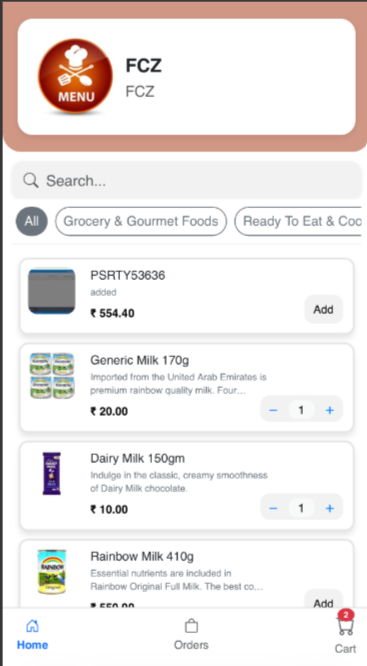
                                                   
                                                                      (Figure 3-QR Menu Products)

Navigate to cart icon and confirm the order, in-case if user wants to add more products user can add more items by selecting add items.
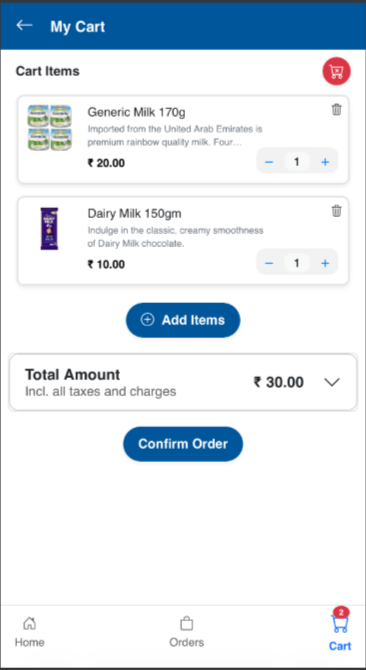

                                                 
                                                                   (Figure 4-Confirm Order Screen)

On selecting confirm order, system will display a pop up message to enter mobile number and Name.
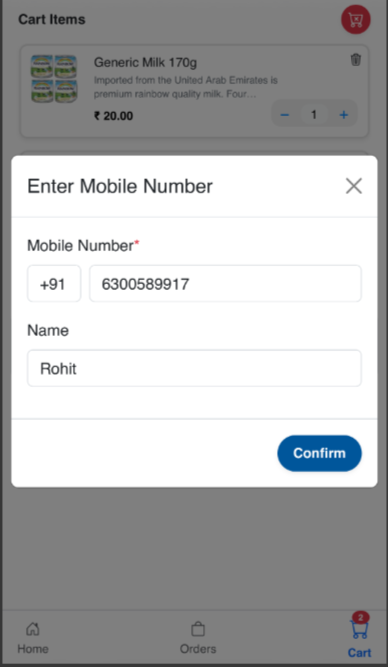

                                                   
                                                                    (Figure 5-Order confirmation) 
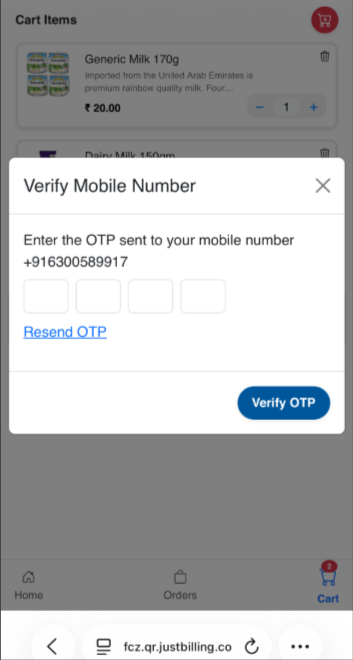

                                                   
                                                              (Figure 6-OTP confirmation)

System will display a pop up message on confirming mobile number and enter OTP to proceed. And system will display Payment button to proceed for the payment.
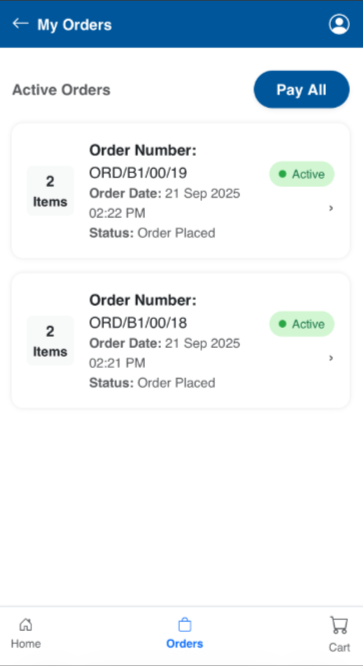

                                                 
                                                                  (Figure-6-Payment Screen)


From the above screen system is displaying as order placed, To confirm the order user need to accept the order from POS Transactions--Order confirmation page.

Below is the screenshot for reference.
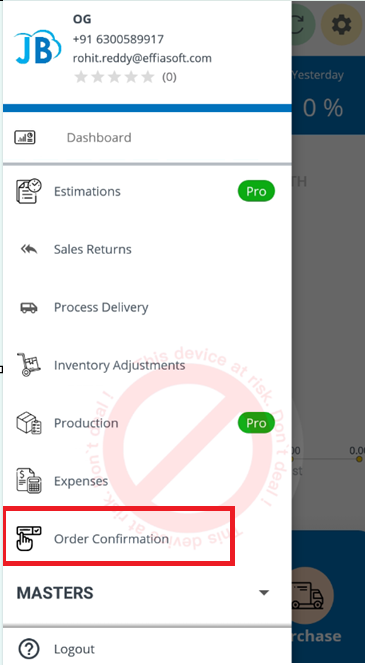

                                               
                                                                                   (Figure 7-Order Confirmation Page)
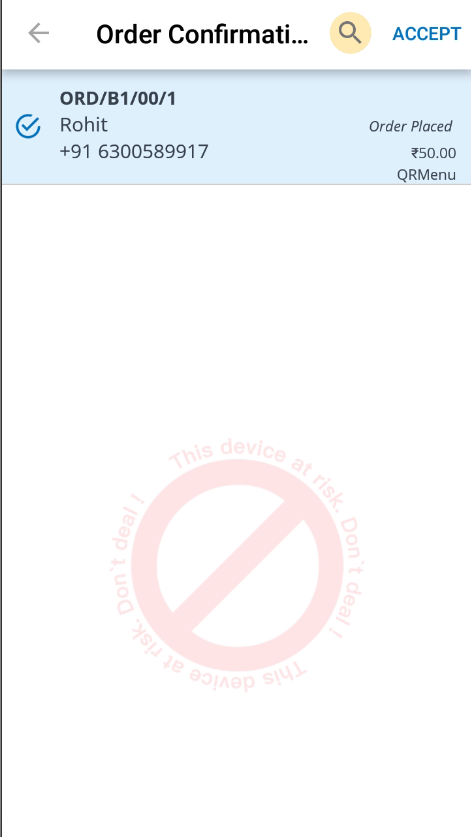


                                                                                            (Figure 8-Order confirmation Page)
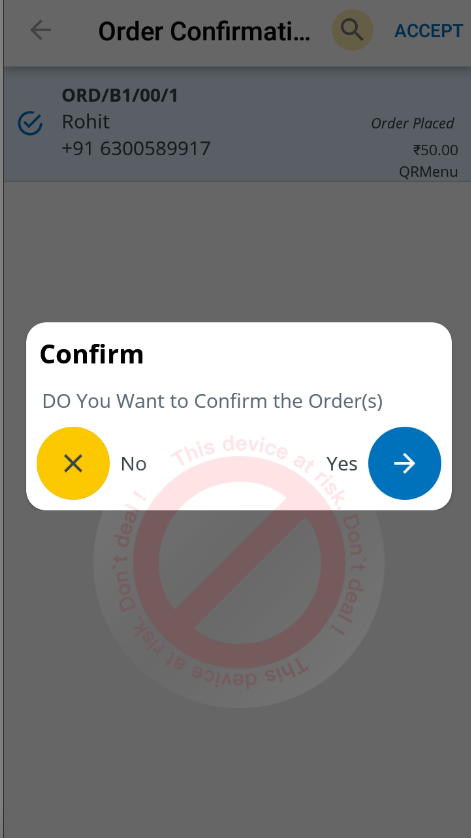

                                             
                                                                                               (Figure 9-Order Confirmation Page)

                                             
 On confirming the order, system will move the order to KOT(Kitchen Order ticket). Once the order is ready the user will close the KOT order.

                                           
                                                                                      (Figure 10-KOT Orders)

                                           
                                                                                 (Figure 11-Clearing of KOT Orders)


                                                                                          ( Figure-12-Order confirmed)

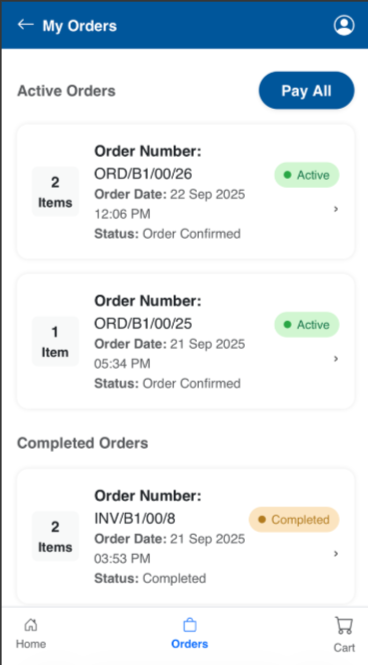
After confirming the order from POS , from the above screen, the order status will be changes to confirmed. On selecting Pay all button the system will re-direct to payment gateway and proceeds us for the payment section.
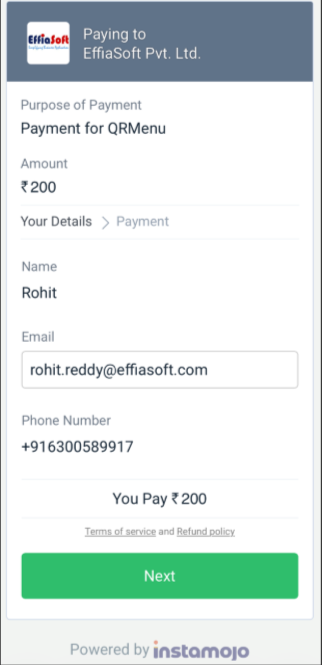

                                                                 
                                                                             ( Figure-13-Payment Screen)

On selecting next system will redirect to the different Payment methods. Where user can select any Payment method.
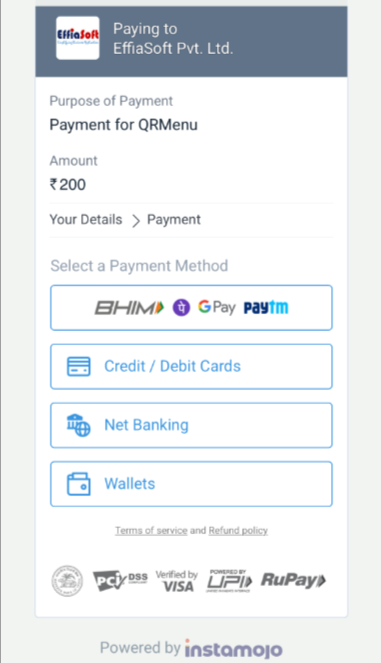

                                                       
                                                                               ( Figure-14-Payment Screen)
On selecting any wallet payment system will re-direct to the particular payment gateway.
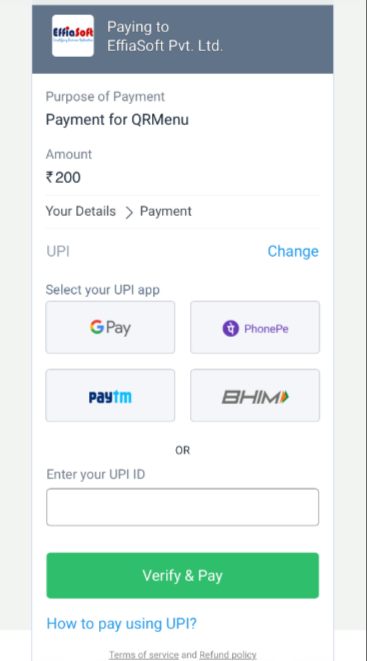

                                                       
                                                                               ( Figure-15-Payment Screen)

On selecting Gpay, and proceeding for the payment system will display  as payment as successfull and receipt is generated via registered email.


.