Reports
Reports
Reports
In this topic we will briefly discuss about the different reports that are available under Reports in the Just Billing app (as below).
Reports can be accessed from Menu  > Reports.
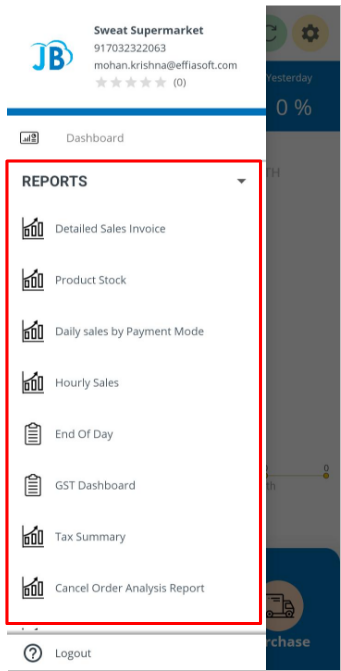
(Figure 1 : Reports Menu Screen)
For all the reports, these can saved on the device and then shared or printed. It can be done from the icon  situated at the top right corner of each reports' screen.
When you tap this icon, it provides you the options to save or share the report. If you choose to save, it gets saved on your device, which can then be printed or shared.
You can also set date filter for all the reports from the  icon. If you tap on this icon, the date filter pop up opens, where you can set the start and end date for a report based on a certain time period.
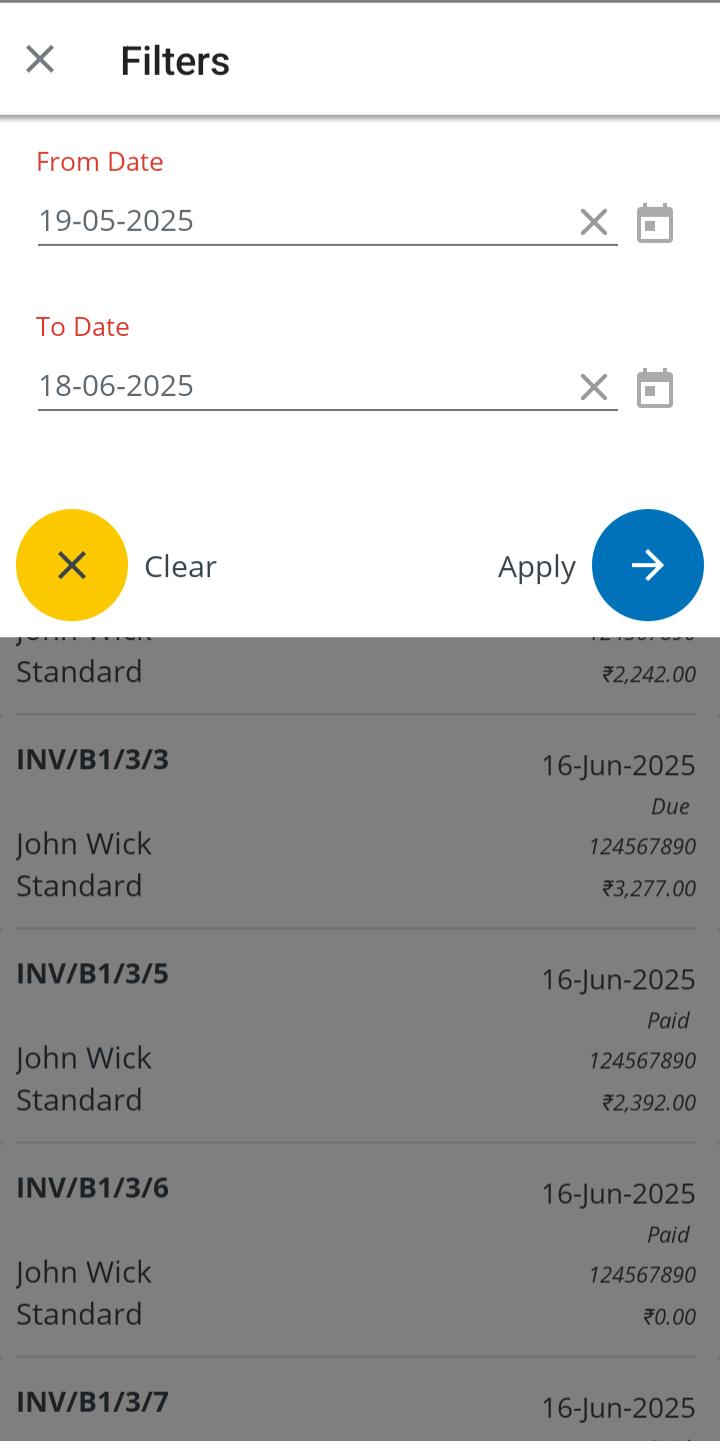
(Figure 2 : Date Selection Screen)
Reports are available according to the selected type of report.
In JB Mobile app there are various types of Reports:
- Detailed sales invoice
- Product stock
- Daily sales by payment mode
- Hourly sales
- End of the day
- GST Dashboard
- Tax summary
- Cancel order analysis report
- Sales summary by sales person
- Detailed return order
- Complementary sales
- Detailed purchase invoice
- Batch expiry report
- Serial expiry report
When user selects a particular Report application is restarted and Reports in the application will be updated corresponding to the selected Report.