WhatsApp Subscription
The WhatsApp subscription allows merchants to subscribe for available WhatsApp messaging plans (Transactional & Promotional). So that merchant can send messages to the customers upon the invoicing.
To navigate to the Whatsapp Subscription, user needs to select Side Menu-->Configuration-->Application Settings and select Whatsapp Notifications Tab.
On selecting Whatsapp Notifications tab below are the options displayed as per the screenshot.
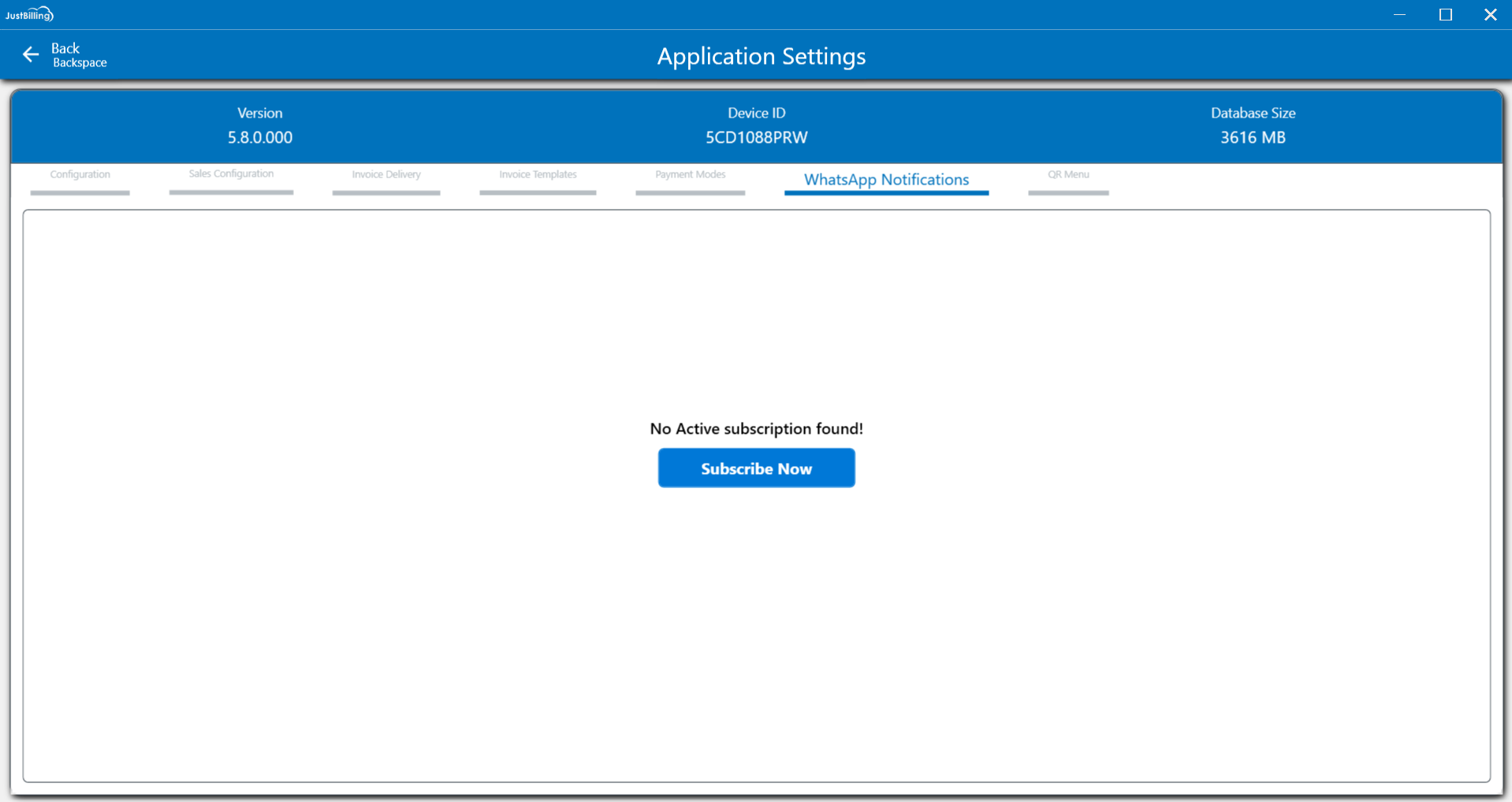
(Figure 1 - WhatsApp Notifications Screen)
How to configure WhatApp Notifications?
1.Click on Subscribe Now.
2.Choose the currency as INR or USD toggle button at top right corner
3.Select Quantity as required for WhatsAPP Transactional SMS or WhatsaApp Promotional SMS.
4.Click on Buy Now.
Below is the screenshot after selecting Subscribe Now button.
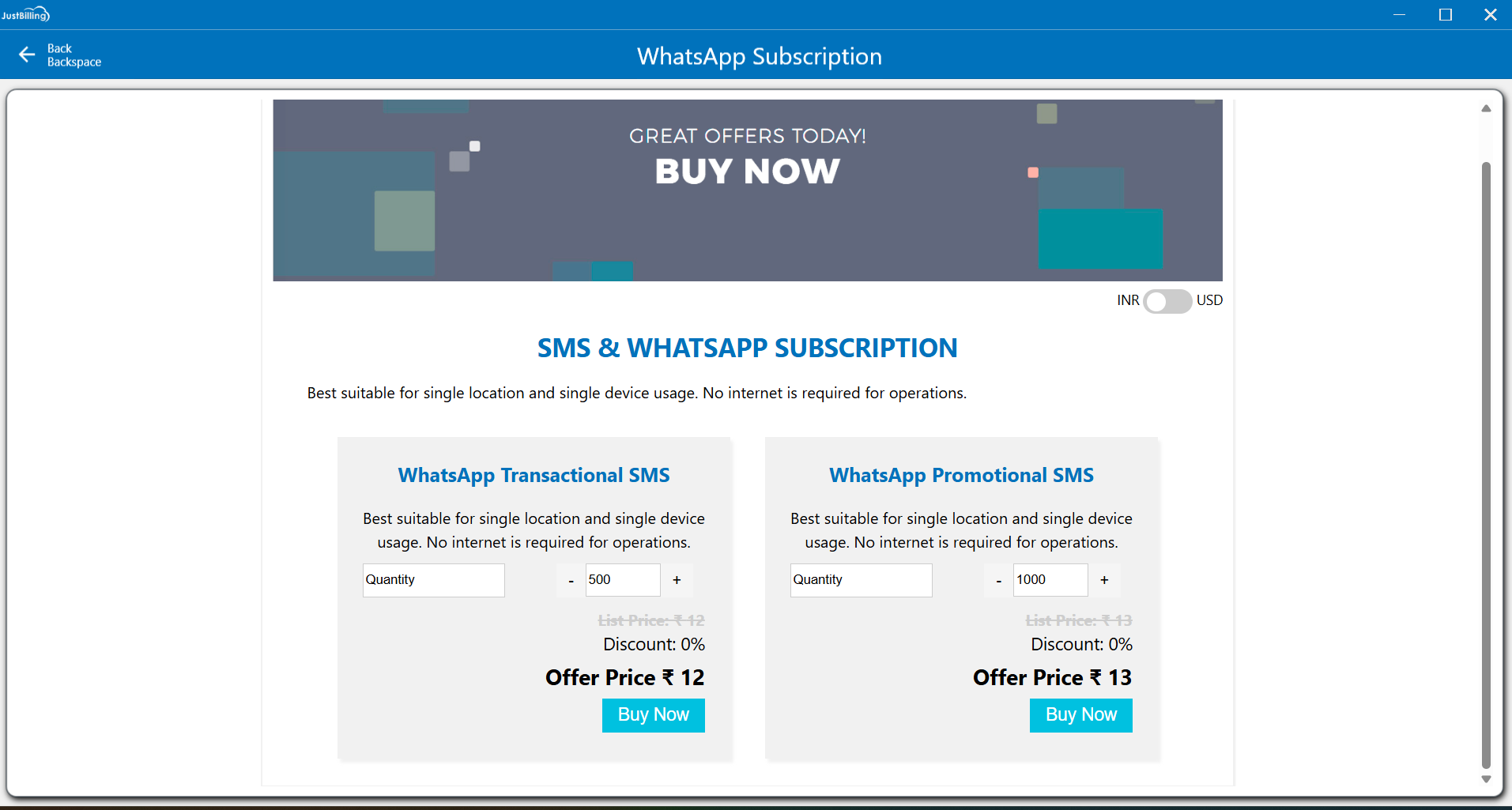
(Figure 2 - WhatsApp Subscription Screen)
On selecting Buy Now option system redirects to the Payment options
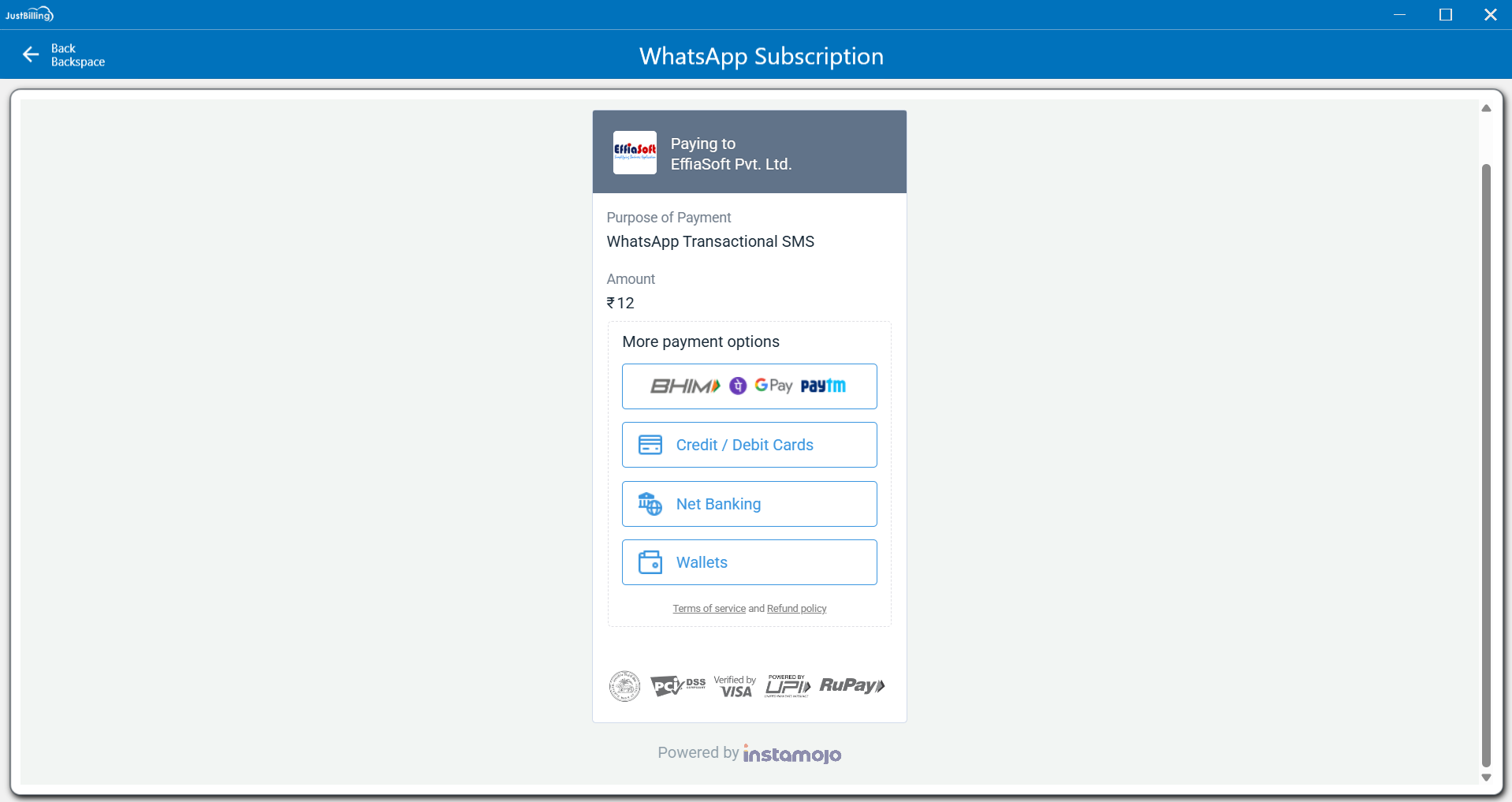
(Figure 3 - Payment Options)
On selecting G Pay oprion system displays a QR code for the Payment.
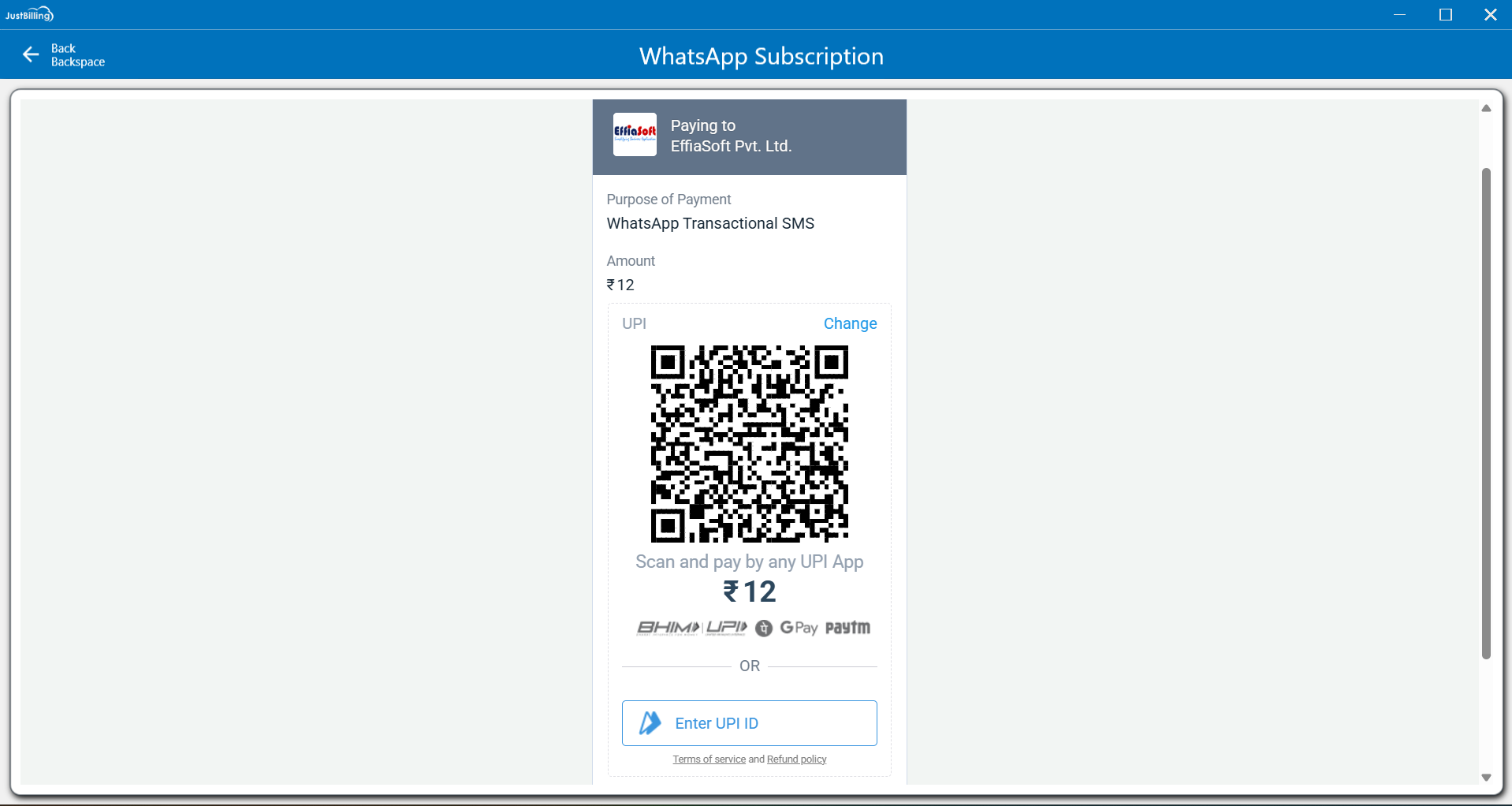
(Figure 4 - Payment via QR code)
After successful payment system will display a pop message as Subscription successfull.
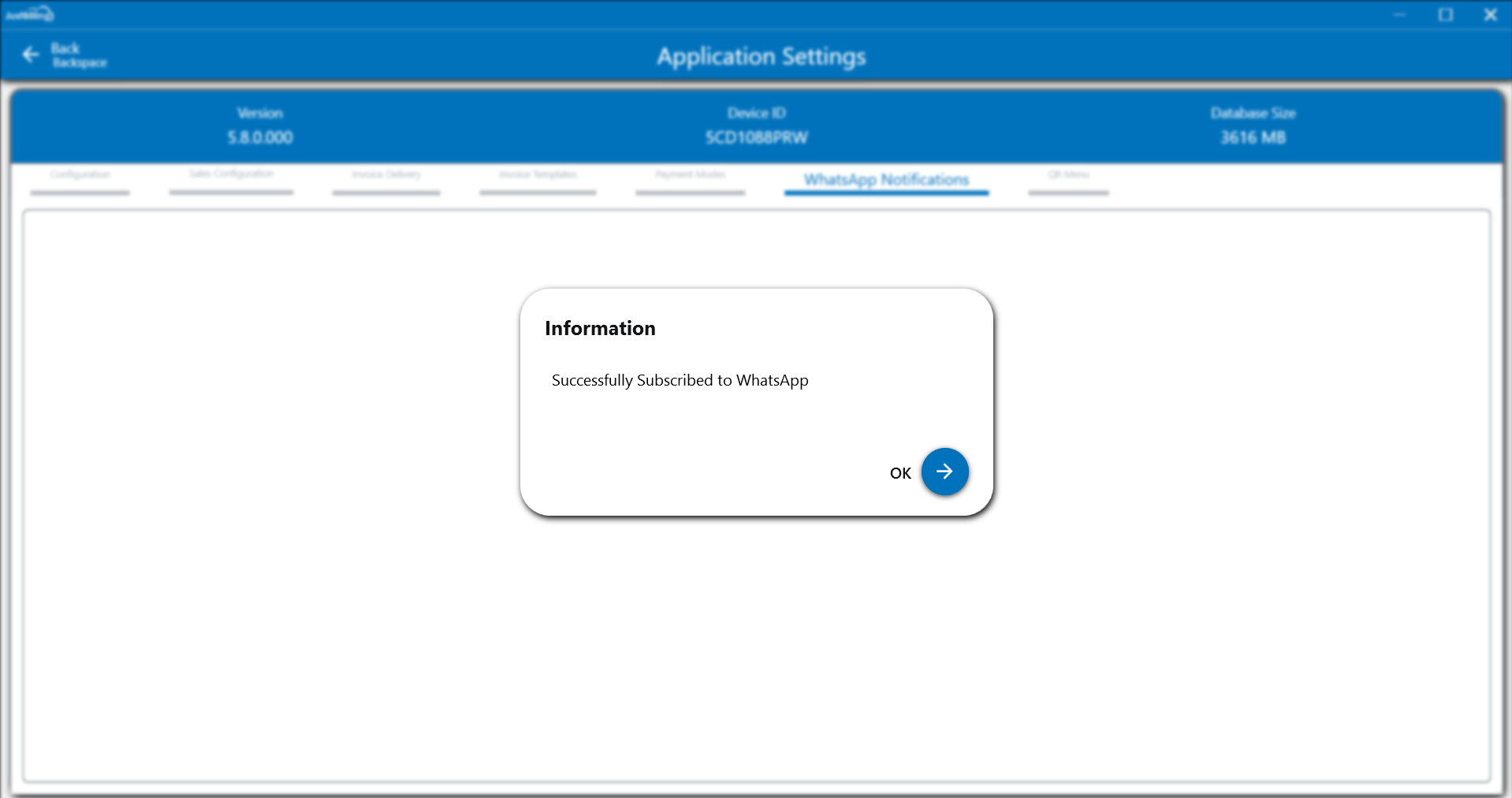
(Figure 5 - Subscription Successfull)
On selecting Ok all the fields related to whatsapp subscription will be displayed.
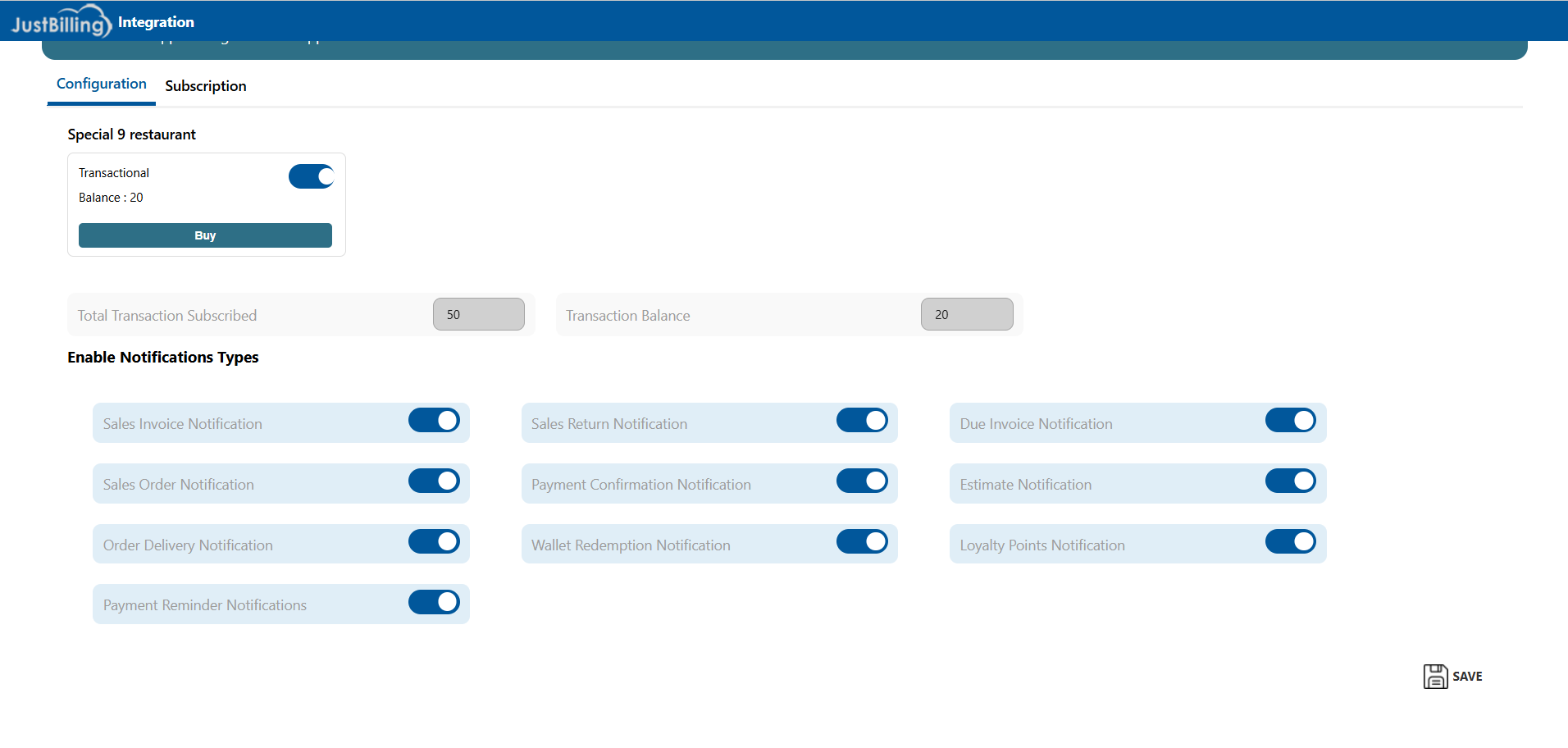
(Figure 6 - Fields related to Whatsapp Subscription)
Notification Types
Overview
The Notification Subscription screen allows users to manage transaction-based notification services for a specific branch. From this screen, users can:
- Enable or disable transactional notifications
- View subscribed transaction limits
- Monitor available transaction balance
- Purchase additional notification credits
- Select which business events should trigger notifications
Navigation
Path:
Masters → Administration → My Organization → Integrations
Branch Selection
At the top of the screen, the selected branch is displayed.
Example:
Special 9
All subscription settings and balances apply only to the selected branch.
Transactional Notification Subscription
Transactional Toggle
|
Field |
Description |
|
Transactional |
Enables or disables transactional notifications for the branch |
- When enabled, notifications will be sent for selected events.
- When disabled, no notifications will be triggered even if event types are enabled.
Transaction Balance Details
|
Field |
Description |
|
Total Transaction Subscribed |
Total number of notification credits purchased |
|
Transaction Balance |
Remaining available notification credits |
|
Balance |
Quick view of remaining credits under Transactional section |
Note:
Each notification sent consumes one transaction credit.
Buy Transaction Credits
|
Button |
Description |
|
Buy |
Purchase additional notification credits |
Use this option when the transaction balance is low or exhausted.
Enable Notification Types
This section allows users to choose which business events will trigger notifications.
Available Notification Types
|
Notification Type |
Description |
|
Sales Invoice Notification |
Sent when a sales invoice is generated |
|
Sales Order Notification |
Sent when a sales order is created |
|
Order Delivery Notification |
Sent when an order is delivered |
|
Payment Reminder Notifications |
Sent to remind customers of pending payments |
|
Sales Return Notification |
Sent when a sales return is processed |
|
Payment Confirmation Notification |
Sent after successful payment |
|
Wallet Redemption Notification |
Sent when wallet balance is redeemed |
|
Due Invoice Notification |
Sent for invoices nearing or exceeding due date |
|
Estimate Notification |
Sent when a sales estimate is created |
|
Loyalty Points Notification |
Sent for loyalty point earn or redemption |
Enabling or Disabling Notifications
- Toggle ON to activate a notification type
- Toggle OFF to stop notifications for that event
- Only enabled notification types will consume transaction credits
Save Configuration
|
Action |
Description |
|
Save |
Saves all subscription and notification settings |
⚠️ Important:
Changes are applied only after clicking Save.
Key Notes & Best Practices
- Ensure sufficient Transaction Balance to avoid failed notifications
- Disable unused notification types to conserve credits
- Monitor balance regularly for uninterrupted service
- Subscription settings are branch-specific
Summary
The Notification Subscription module provides complete control over transactional notifications by:
- Allowing granular event-level notification management
- Offering visibility into usage and balance
- Supporting easy credit purchase and configuration
From the above screenshot on selecting Buy More system will redirect to the payment options and redirect to the Payment gateway and on selecting below notifucations to enable and select save system will displayed those notifucations which are configured.
Note-Once the setup is complete as per the configuration in enable notifications type, WhatsApp messages will be sent to your customers automatically whenever you create a transaction in the system.