Tables
Tables
From this page, users can View, Add and Edit the list of Tables. Tables are necessary for any kind of restaurant having dining facility. This will help you to organise the restaurant table and seating management. From this page it is also help you to know occupied tables and unoccupied tables at any point of time in your restaurant (see figure 1).
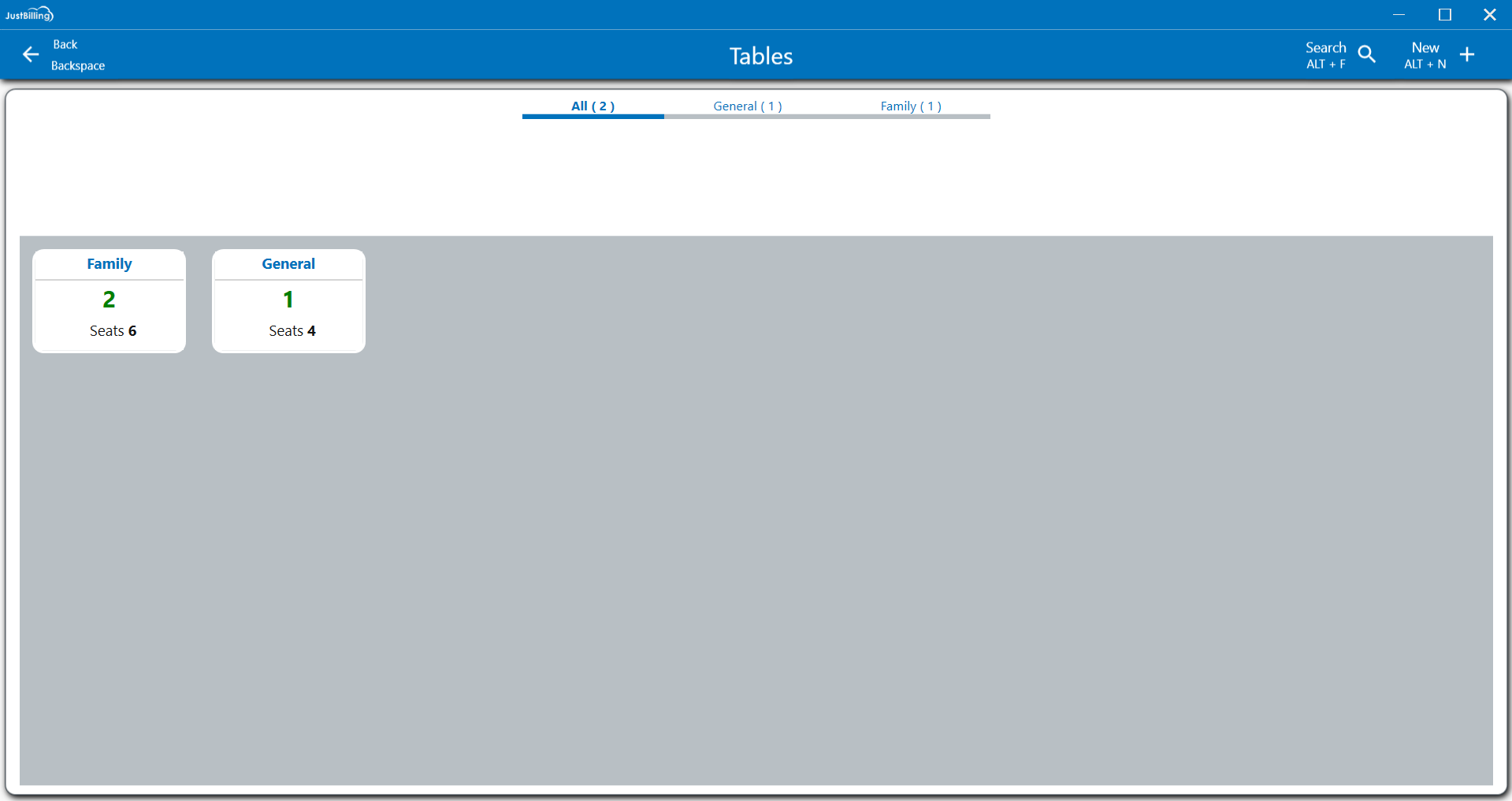
(Figure 1 - Tables page )
How to create a new Table ?
To create a new Table, Navigate the page to from Menu > Masters > Tables (see figure 2 ).
2. Click on + Add, Select Table Type
3. Enter Table No
4. Enter Maximum capacity
5. Save the details
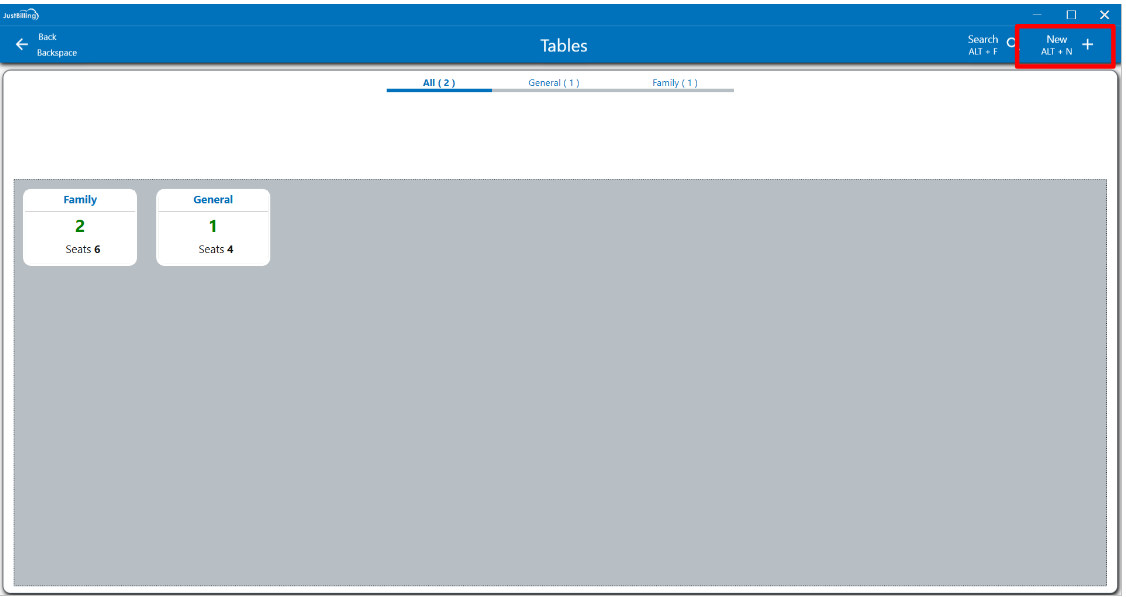
(Figure 2 - Create Table)
Add table details such as Table type, Table number and Maximum capacity and click on save button.(see figure 3 )
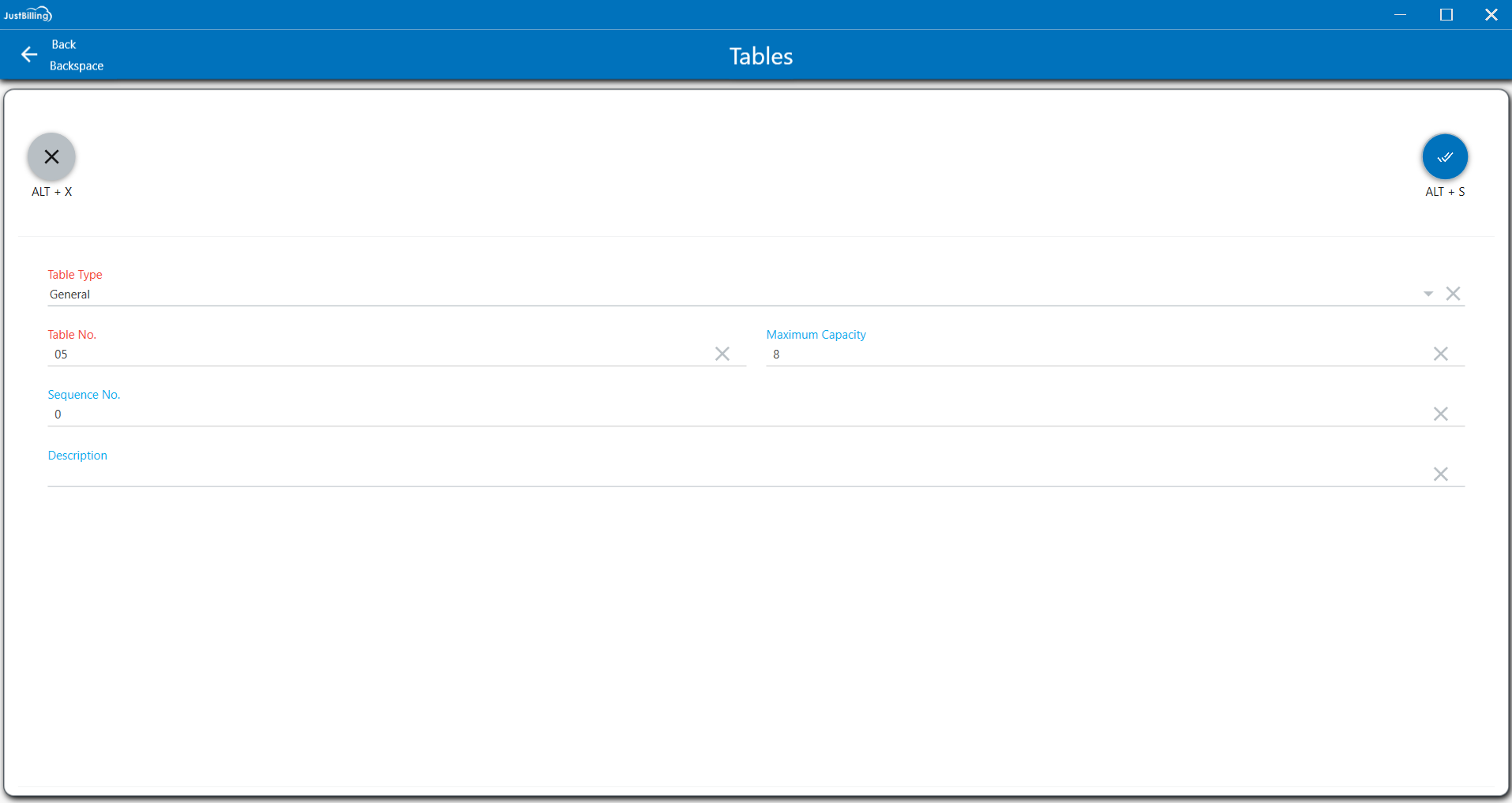
(Figure 3 - Add Table details)
Note: Tables page added from Just billing application will get synced to JB cloud Back office by Auto Sync.
How to edit a Table ?
1. Navigate the page to from Menu > Masters > Table
2. Select a Table from list of Tables available
3. Enter the details need to be Edited/ Updated
4. Then Save the details
5. On Saving, the Tables page is updated and reflects in JB Windows application under Tables page.
How to search a Table ?
1. Click on search field (see figure 4 )
2. Enter the Table name or Table No so that it will filter the results
3. Select the Tables from the filtered results
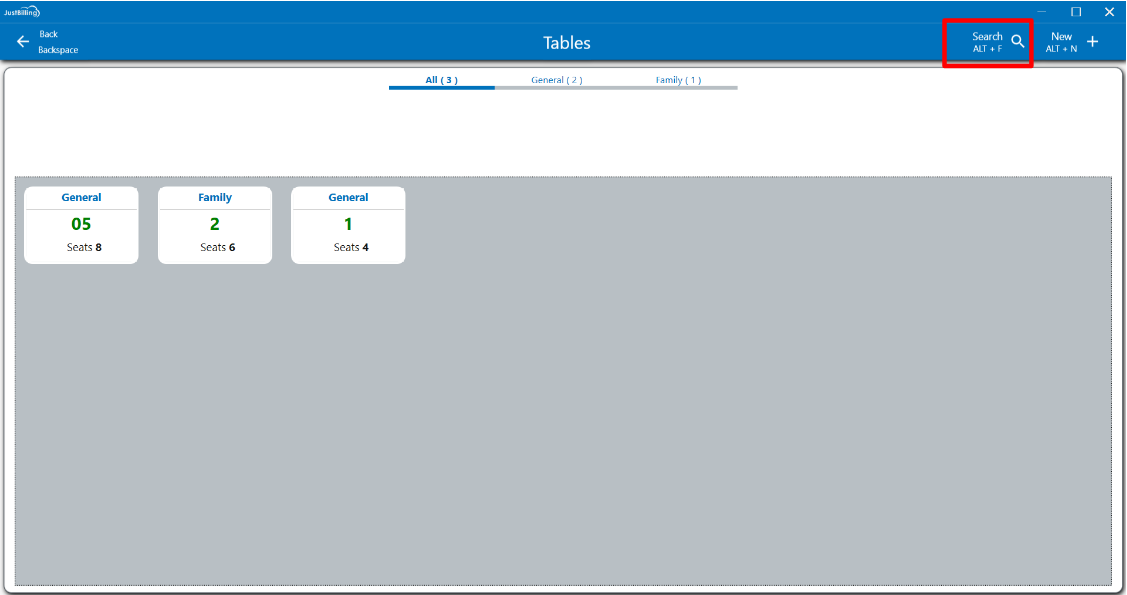
(Figure 4 - Search Table)
Fields in this page are :
- Table type : ( From this option you can select the table type )
- Table number : ( From this option you can enter Table number )
- Maximum capacity : ( From this option you can enter capacity of the table )
- Description : ( From this option you can enter the Table description )