Shopify
Shopify Integration
The Shopify Integration in JustBilling allows the business to connect its JB product catalog, pricing, and inventory with a Shopify online store. This synchronization helps in managing products efficiently from a single platform.
Accessing Shopify Integration
Navigate to:
Menu → Integrations → Shopify
Here, you will see the configuration screen with multiple tabs:
- Configuration
- Subscription
- Map Products
- Sync History
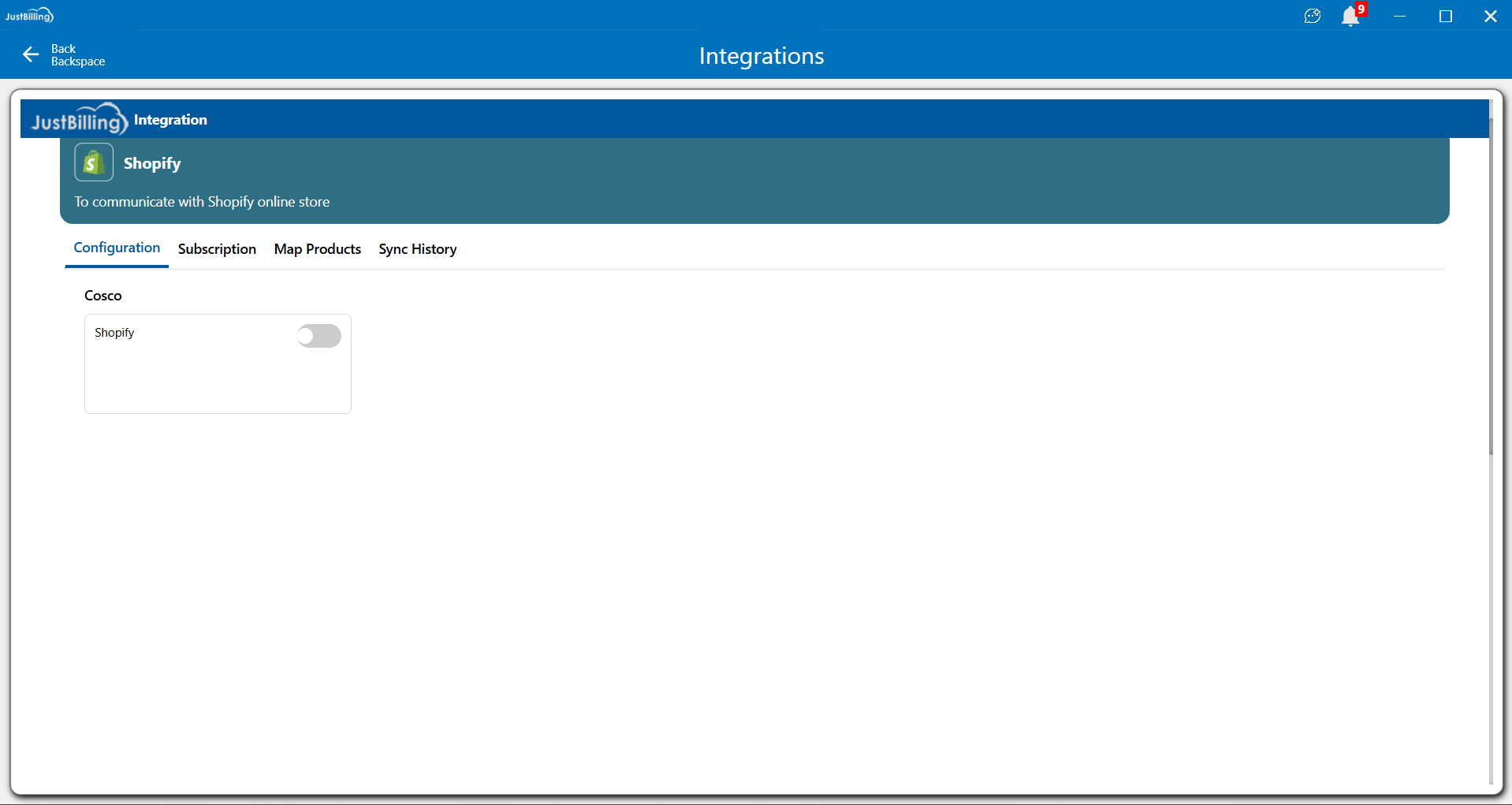
(Figure-1- Shopify Configuration)
Enable Shopify Integration
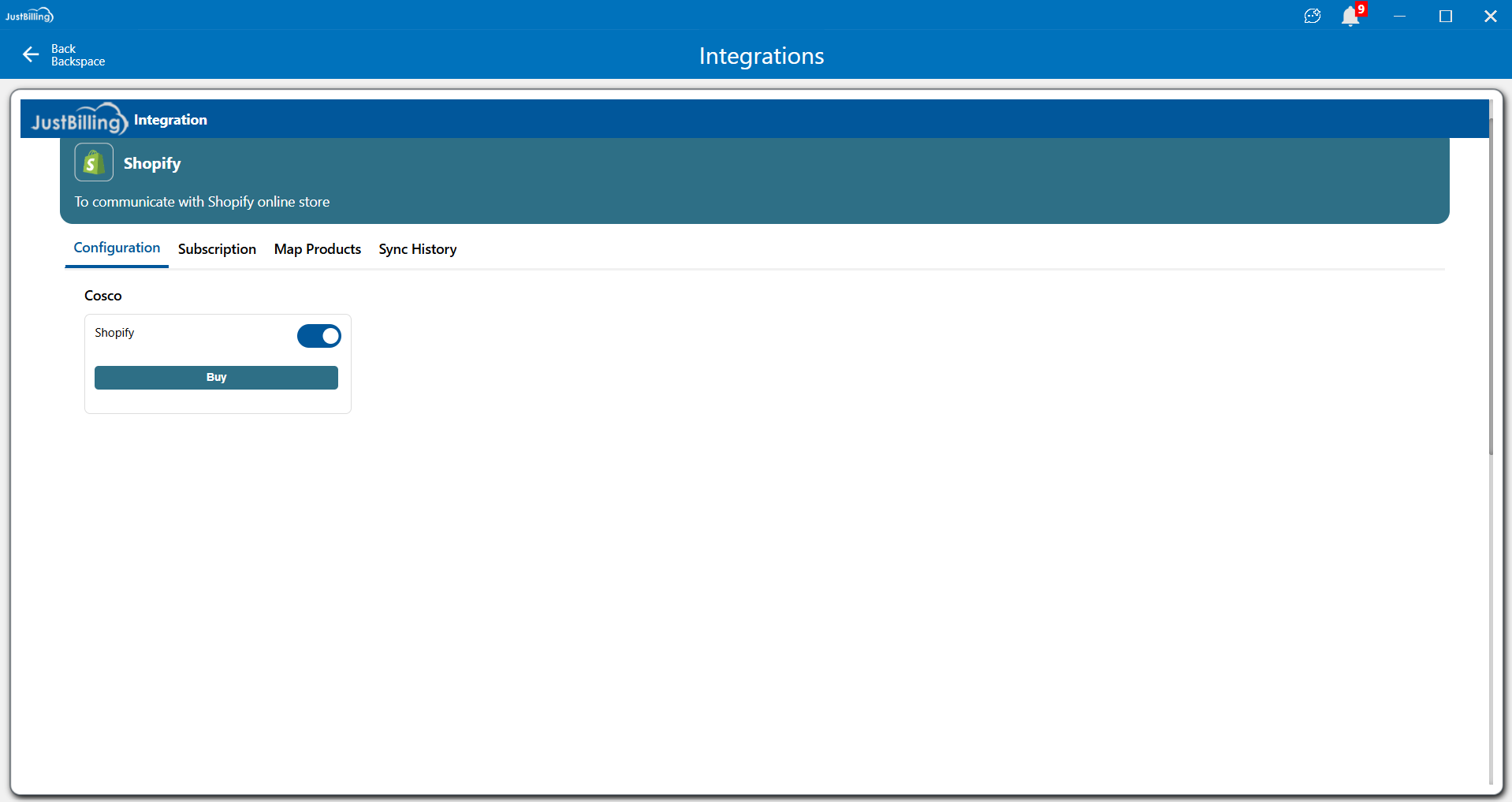
(Figure-2- Shopify Configuration)
- Toggle the Shopify switch ON to activate the integration for the selected branch.
- Once enabled, you can configure and sync Shopify settings for the store.
If the subscription is not active, the system prompts you to purchase a plan.
Subscription Purchase / Renewal
Buy/Renew Subscription Popup
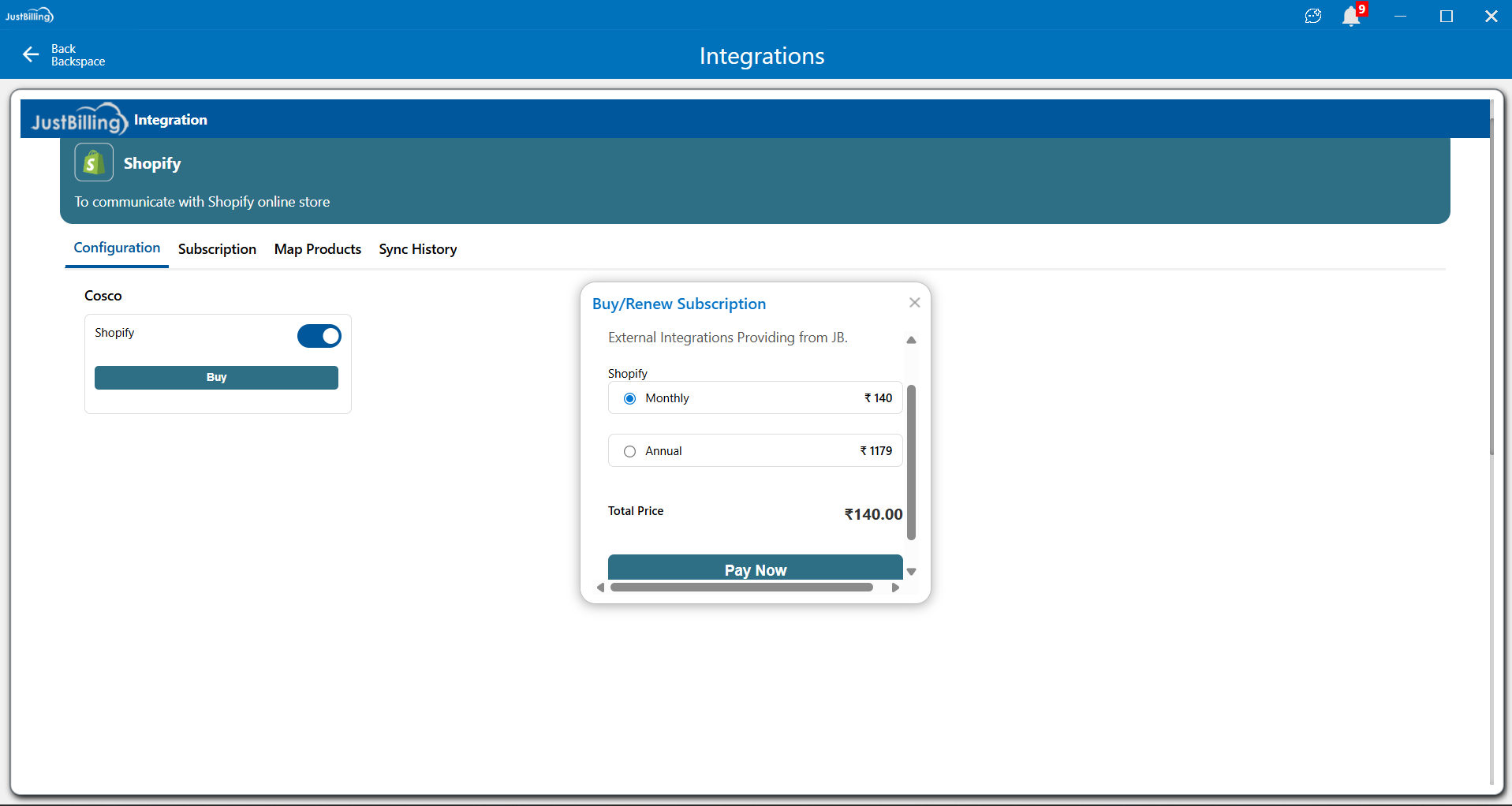
(Figure-3- Shopify Configuration)
When you click Buy, a subscription popup appears:
Available Plans:
- Monthly Plan – ₹140
- Annual Plan – ₹1179
The total amount is shown at the bottom.
Steps:
- Select Monthly or Annual.
- Click Pay Now → You will be redirected to the payment screen.
Payment Gateway Flow
When initiating the subscription payment, the system redirects to the secure payment gateway (Razorpay/UPI).
Enter Customer Details
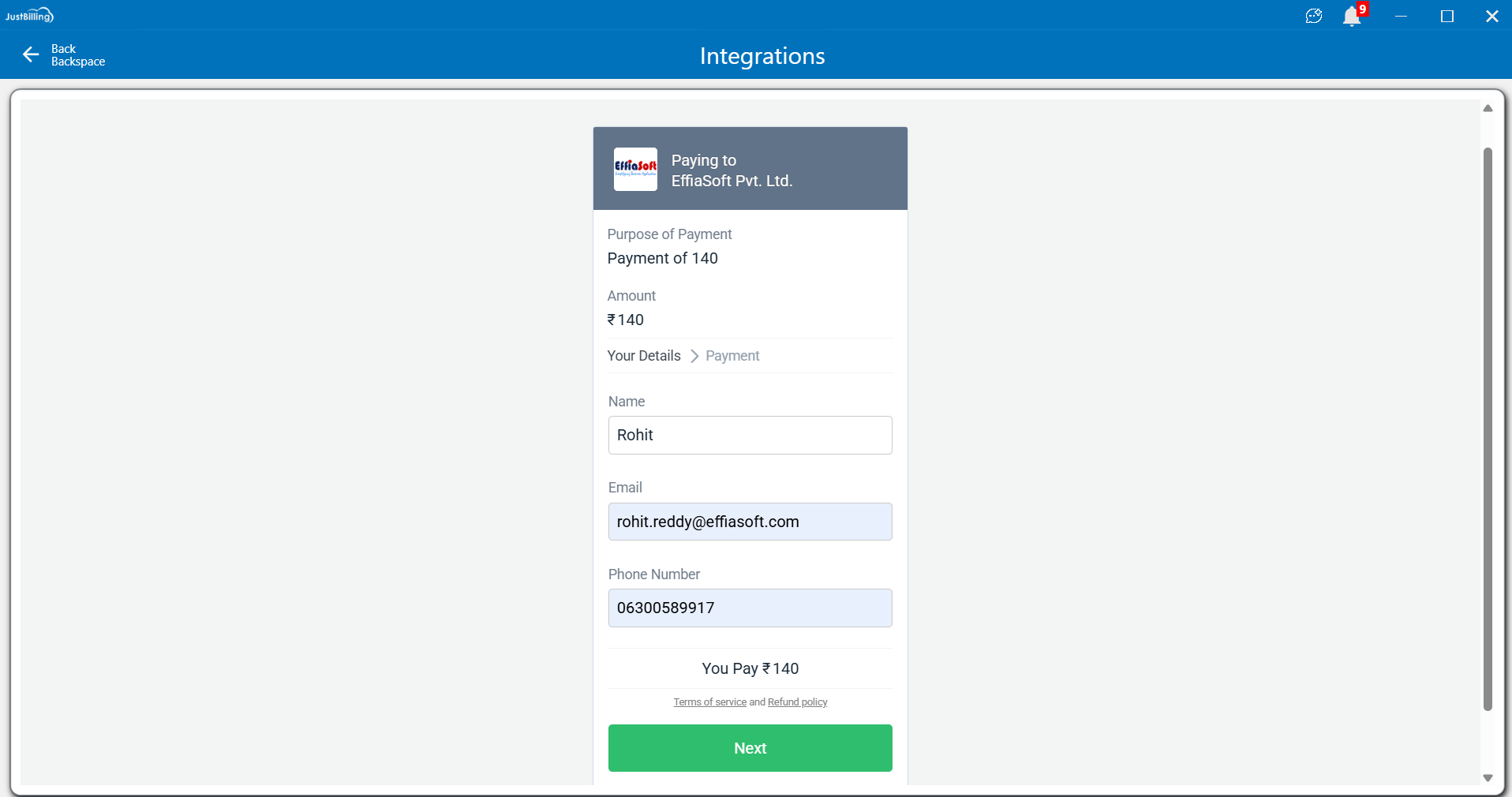
(Figure-4- Shopify Configuration)
Fields:
- Name
- Phone Number
Click Next to proceed.
Choose Payment Method
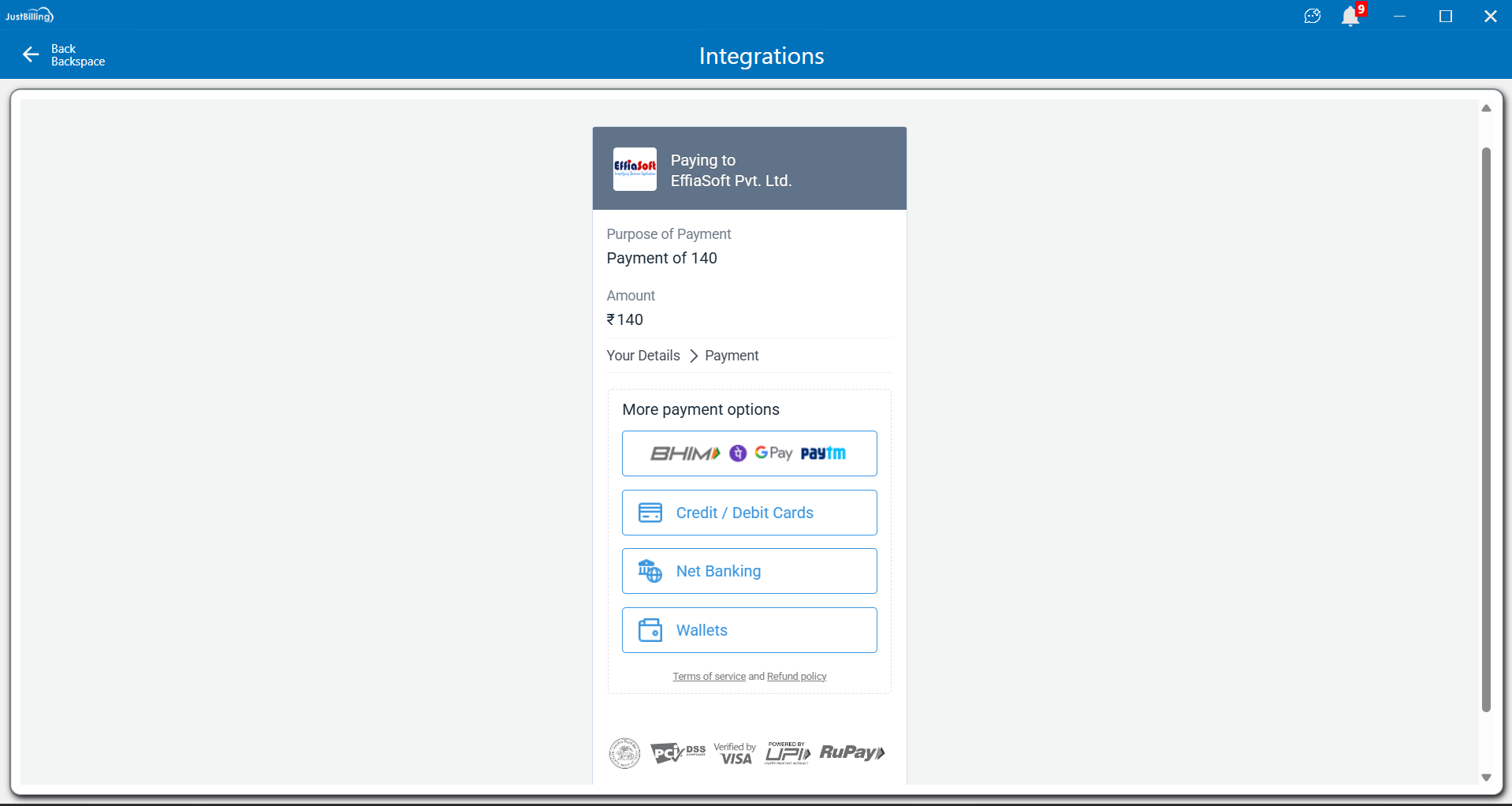
(Figure-5- Shopify Configuration)
Available options:
- UPI (BHIM, Google Pay, Paytm)
- Credit/Debit Card
- Net Banking
- Wallets
After payment is completed, the subscription is activated automatically.
Active Subscription View
Once the payment is successful:
- The Shopify toggle will remain ON.
- You can use Map Products and Sync options
Overview
The Shopify Integration module enables seamless communication between JustBilling and a Shopify online store. This integration allows businesses to:
- Sync products from JustBilling to Shopify
- Map Shopify locations to JustBilling branches
- Automatically sync inventory and prices
- Push dispatch and delivery updates to Shopify
- Track synchronization history and responses
Navigation Path
Path:
Masters → Administration → My Organization
Shopify Integration Tabs
The Shopify integration screen consists of the following tabs:
- Configuration
- Map Products
- Sync History
Each tab handles a specific part of the integration workflow.
Configuration Tab
The Configuration tab is used to connect JustBilling with a Shopify store and configure sync behavior.
Enable Shopify Integration
|
Field |
Description |
|
Shopify Toggle |
Enables or disables Shopify integration for the selected branch |
- When enabled, Shopify-related configuration fields become editable.
- When disabled, all Shopify synchronization features are paused.
Store Connection Details
|
Field |
Description |
|
Domain URL |
Shopify store domain (example: yourstore.myshopify.com) |
|
Access Token |
Shopify private app access token used for authentication |
Steps:
- Enter the Shopify store Domain URL
- Paste the Access Token generated from Shopify Admin
- Click Save to establish the connection
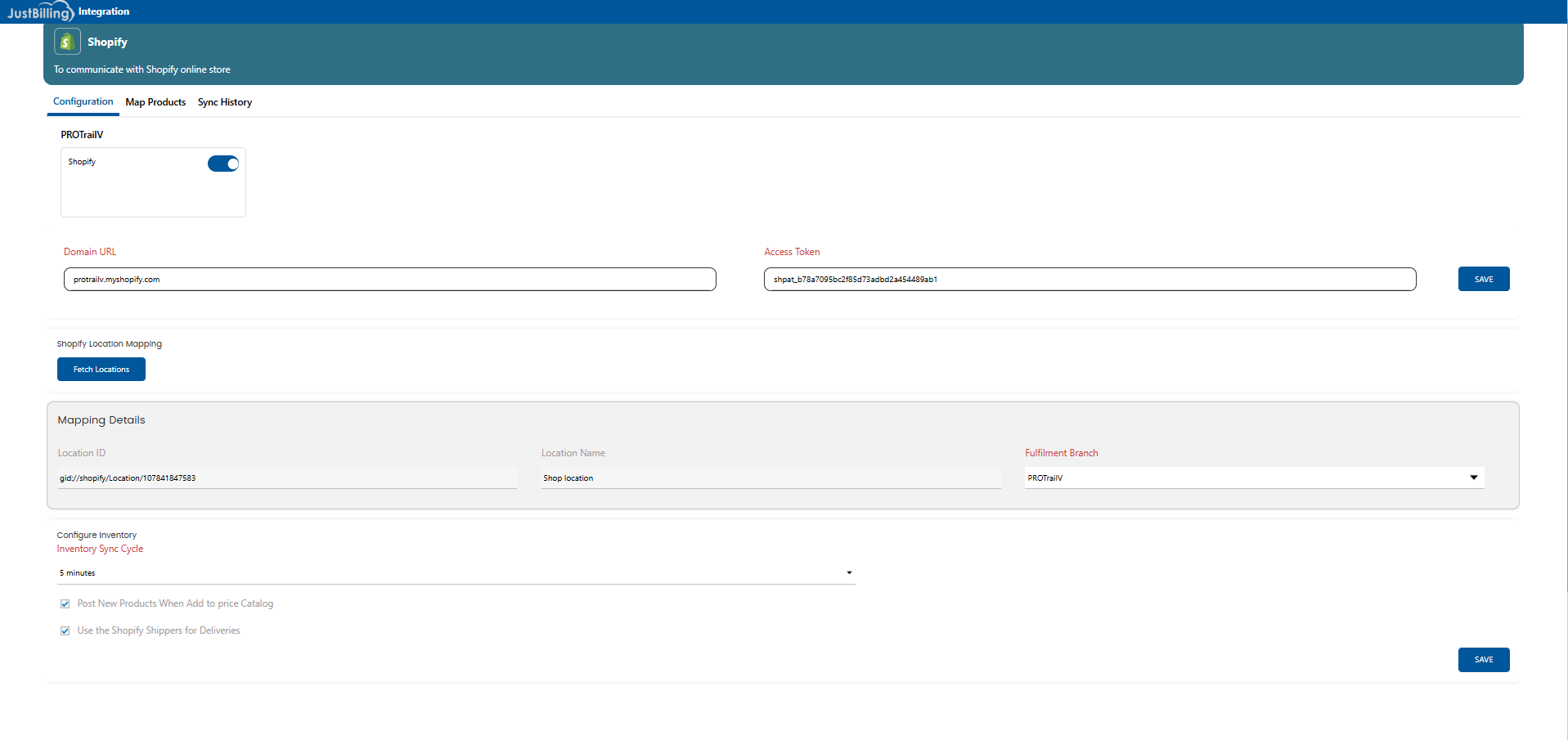
(Figure-6- Shopify Configuration)
Shopify Location Mapping
This section maps Shopify fulfillment locations with JustBilling branches.
Fetch Locations
|
Button |
Description |
|
Fetch Locations |
Retrieves all locations configured in Shopify |
Mapping Details
|
Field |
Description |
|
Location ID |
Unique Shopify location identifier |
|
Location Name |
Name of the Shopify store location |
|
Fulfillment Branch |
Corresponding JustBilling branch for order fulfillment |
Purpose:
Ensures that orders received from Shopify are fulfilled from the correct JustBilling branch.
Inventory Configuration
Inventory Sync Cycle
|
Field |
Description |
|
Inventory Sync Cycle |
Time interval for automatic inventory sync |
Example:
- 5 minutes → Inventory updates are pushed every 5 minutes
Inventory Options
|
Option |
Description |
|
Post New Products When Added to Price Catalog |
Automatically posts newly added products to Shopify |
|
Use Shopify Shippers for Deliveries |
Enables Shopify-managed delivery and dispatch updates |
Use Shopify Shippers for Deliveries (Important)
When the “Use Shopify Shippers for Deliveries” checkbox is selected:
Confirmation Popup
A confirmation dialog is displayed with the message:
“Dispatch Information Will Be Pushed to Shopify”
|
Button |
Action |
|
Yes |
Confirms and enables dispatch information sync to Shopify |
|
No |
Cancels the action and keeps the option disabled |
Functional Impact
- When enabled:
- Dispatch and delivery status updates from JustBilling are pushed to Shopify
- Shopify handles shipment tracking and delivery notifications
- When disabled:
- Delivery information is managed only within JustBilling
⚠️ Note:
Once enabled, Shopify becomes the source of truth for delivery tracking.
Save Configuration
Click Save to apply all configuration and inventory settings.
Map Products Tab
The Map Products tab displays all products available for Shopify synchronization.
Product Mapping Grid
|
Column |
Description |
|
Select Checkbox |
Choose products to sync |
|
Product Name |
Name of the product |
|
Product Code |
Unique product identifier |
|
Category |
Product category |
|
Variant |
Product variant (if applicable) |
|
Price |
Selling price to be pushed to Shopify |
Actions
|
Action |
Description |
|
Select Products |
Choose products to sync |
|
Edit Price |
Modify Shopify selling price |
|
Force Sync |
Immediately pushes selected products to Shopify |
|
Search |
Quickly locate products |
Force Sync
|
Button |
Description |
|
Force Sync |
Manually triggers immediate synchronization |
Used when:
- Prices are updated
- Products are newly added
- Immediate sync is required
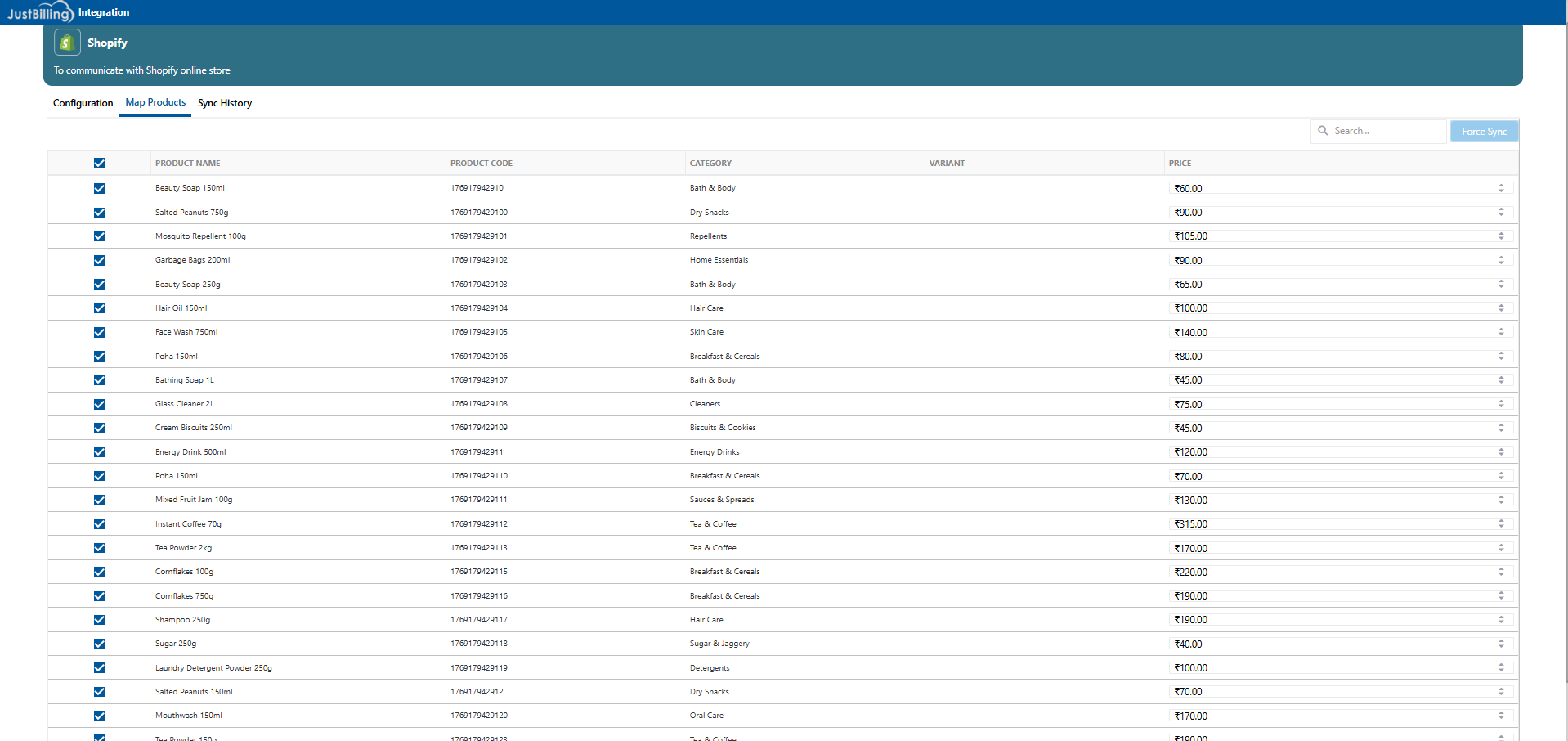
(Figure-7- Shopify Configuration)
Sync History Tab
The Sync History tab provides a detailed log of all Shopify synchronization activities.
Sync Summary Section
|
Field |
Description |
|
Sync ID |
Unique sync transaction identifier |
|
Sync Count |
Number of products synced |
|
Sync Start Time |
Sync initiation timestamp |
|
Sync End Time |
Sync completion timestamp |
Product-Level Sync Details
|
Field |
Description |
|
Product Name |
Synced product |
|
Product Code |
Product identifier |
|
Category |
Product category |
|
Variant |
Variant details |
|
Price |
Synced price |
|
Status |
Sync status (Success/Failed) |
|
Image Added |
Indicates whether image was synced |
|
Inventory Count |
Synced inventory quantity |
|
Response |
Shopify API response details |
View Response
|
Button |
Description |
|
View Response |
Displays detailed Shopify API response |
Useful for:
- Troubleshooting failed syncs
- Verifying successful data transfer
Key Notes & Best Practices
- Ensure Domain URL and Access Token are valid before saving
- Always map Shopify Locations to fulfillment branches
- Enable Use Shopify Shippers for Deliveries only if Shopify handles logistics
- Monitor Sync History regularly to identify issues
- Use Force Sync after major price or product updates
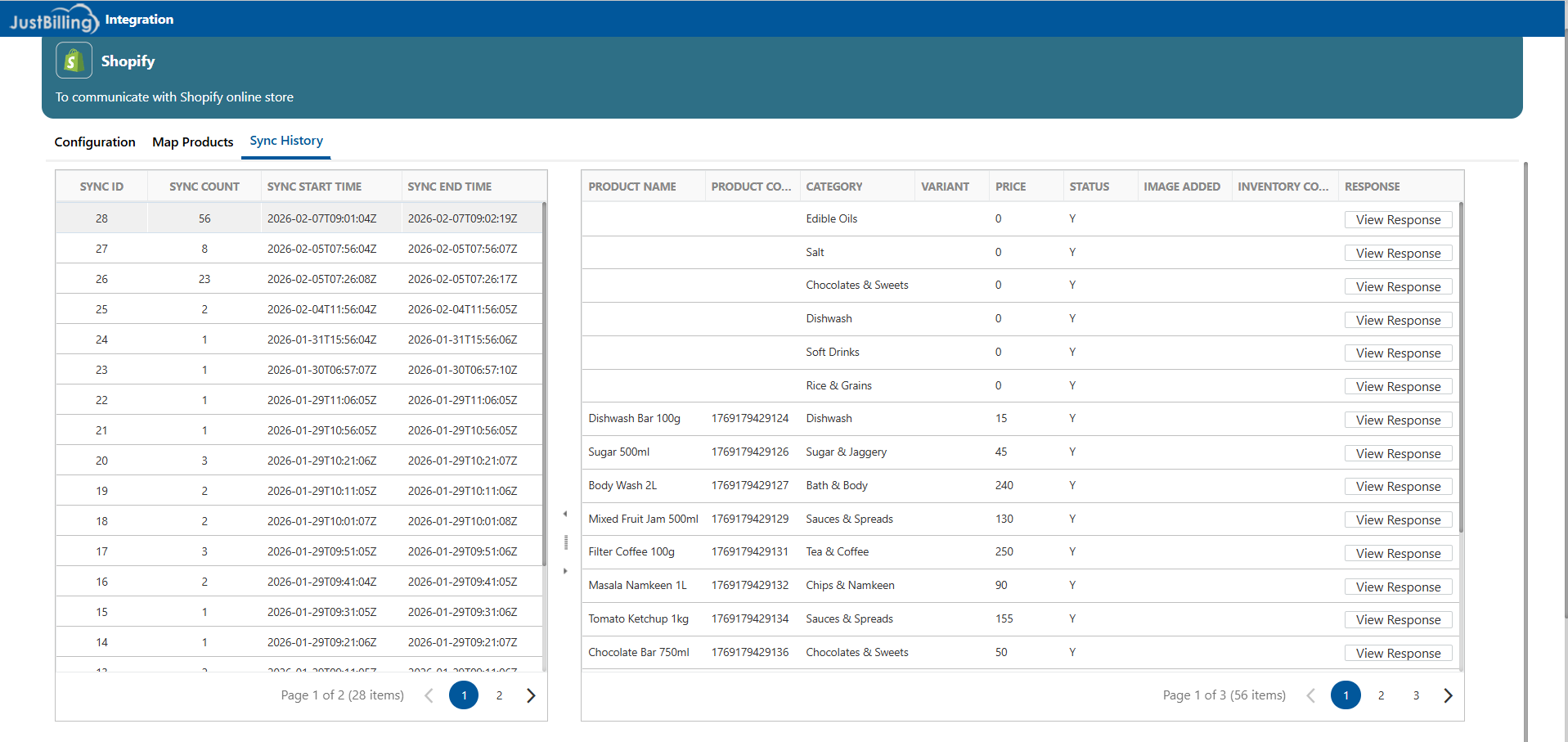
(Figure-8- Shopify Configuration)