Dashboard
Dashboard
The Dashboard provides a real-time summary of your business performance, including sales, profit, purchases, and expenses. It also allows you to quickly access key operations such as creating invoices, managing orders, and monitoring subscriptions.
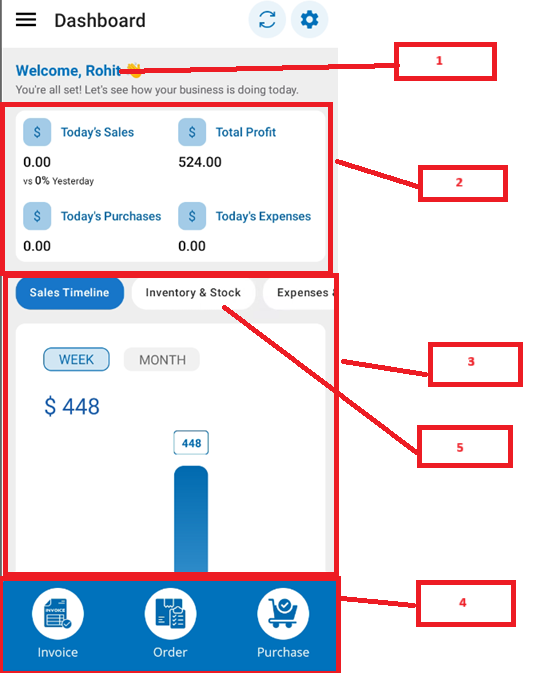
(Figure 1 - Just Billing Windows Dashboard Screen)

(Figure 2 - Just Billing Windows Dashboard Screen)

(Figure 3 - Just Billing Windows Dashboard Screen)
Accessing the Dashboard
To access the Dashboard:
- Launch the application.
- From the main menu, select Dashboard.
- The home screen will display your daily business insights and performance metrics.
Dashboard Layout
|
|
|
|
|
No. |
Section Name |
Description |
|
1 |
Welcome Section |
Personalized greeting and overview of business health. |
|
2 |
Business Summary Cards |
Displays Today’s Sales, Profit, Purchases, and Expenses. |
|
3 |
Sales Timeline Graph |
Weekly visual representation of sales performance. |
|
4 |
Quick Access Buttons |
Shortcuts to frequently used operations (Invoice, Order, Purchase). |
|
5 |
Inventory & Stock |
Monitors stock status and alerts for low/out of stock items |
|
6 |
Expenses & Suppliers |
Displays list of expenses recorded with amount details |
|
7 |
Collections |
Graph showing mode of payment collections |
|
8 |
Open Orders |
Shows pending or ongoing customer orders |
|
9 |
Subscriptions |
Displays activation status of modules and available credits |
Detailed Widget Description
Welcome Section
Displays a personalized greeting with your registered user name and encourages the user to check the day’s business summary
Business Summary Cards
Shows Today’s Sales, Total Profit, Today’s Purchases, and Today’s Expenses. Each card also displays comparison with previous day’s performance.
Sales Timeline
Displays weekly and monthly sales trend through a bar chart.Over a bar shows the exact sales amount for that day.
Quick Access Buttons
Includes Invoice, Order, and Purchase buttons for faster transactions.
Subscription Panel
Shows subscription statuses for Restaurant Lite, SMS Kaleyra, Ecommerce, and PhonePe Offline modules.
Inventory & Stock
Displays inventory health with ‘Out of Stock’ and ‘Low Stock’ alerts.
Expenses & Suppliers
Displays the list of expenses recorded with supplier/category details.
Collections Summary
Displays mode of payment collection as a donut chart (e.g., 100% Cash).
Open Orders
Displays pending or in-progress customer orders. Shows a message if no orders exist.
Floater Bell Icon
Overview
The Floater Bell Icon provides quick access to important alerts and order-related notifications directly from the Dashboard. It ensures users never miss critical updates such as new orders, order confirmations, or system alerts.
The bell icon appears as a floating button on the Dashboard with a red badge count indicating the number of unread notifications.
Bell Icon Indicator
The bell icon is displayed at the lower section of the Dashboard as a floating action button.
A red badge with a number (e.g., 2) indicates the count of pending notifications requiring user attention.
Users can tap the icon to instantly view detailed messages

(Figure 1 - Floater Bell Icon)
3. Accessing Notifications
When you tap the floater bell icon:
A pop-up screen will appear showing the list of notifications.
Each notification will display:
Order Number (e.g., ORD/B1/00/3)
Customer Name
Contact Number
Order Status (e.g., Order Placed)
Order Value
Order Source (e.g., ECommerce)
You can scroll to view all pending notifications.
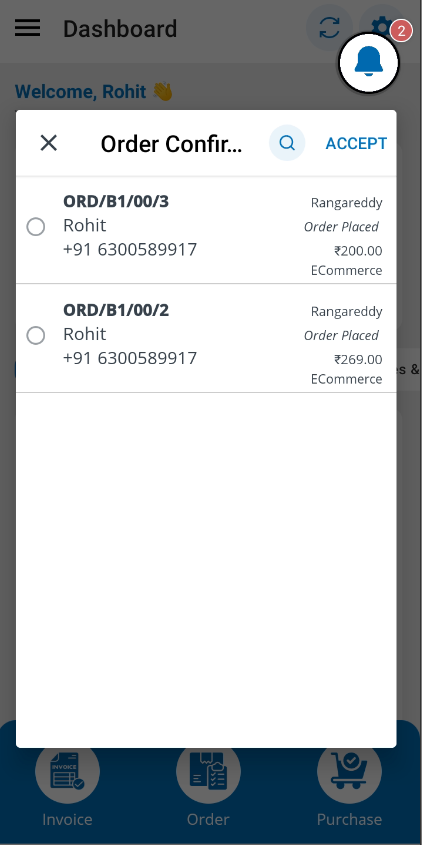
(Figure 2 - Floater Bell Icon)
4. Notification Actions
a. Select Notification
Tap the radio button next to any order to select it.
b. Accept Orders
Click ACCEPT (top-right button) to approve selected orders.
Once accepted, the notification is cleared from the bell counter.
c. Quick Search
Use the search icon to look for a specific order by Order ID or Customer Name.
5. Clearing Notifications
After processing (Accepting) the order notifications, the red badge count on the bell icon reduces automatically.
When all notifications are cleared, the badge count returns to 0.
6. Purpose of the Floater Bell Icon
The floating bell icon helps users to:
Receive order updates instantly
Quickly take action without navigating to other menus
Improve order processing efficiency
Maintain real-time visibility of customer orders