Configuring the app
Configuration the app
Stated below are the steps to configure the app for your business type.
1) On completion of installation, the initial configuration screen opens.
Select your registration type. There are two options available in the Portal Registration page : (See figure 1 below ).
- New Organization - This option should be selected if users are subscribing to the app for the first time.
- Registered Organization - This option should be selected by existing users of the app.
(Figure 1 - Registration type selection)
2) Select the type of registration - New Organization or Registered Organization subscription - Lite or PRO (With web portal).
In this guide we will be discussing about configuring new organization with PRO (With web portal) subscription.
Case 1 : Portal registration for New Organization (this is for first time users of Just Billing Android)
Step a : Select New Organization (See figure 2 below ).
(Figure 2 - New Registration type )
Step b : After selecting the Organization Type, you will be directed to a screen displaying a set of required permissions, including access to Camera, Storage, Location, and Contacts, along with the application's Terms and Conditions.
Review the permissions and policies carefully, then click on the “I Agree” button to proceed with the domain creation process. (See figure 3.1 & 3.2 below )
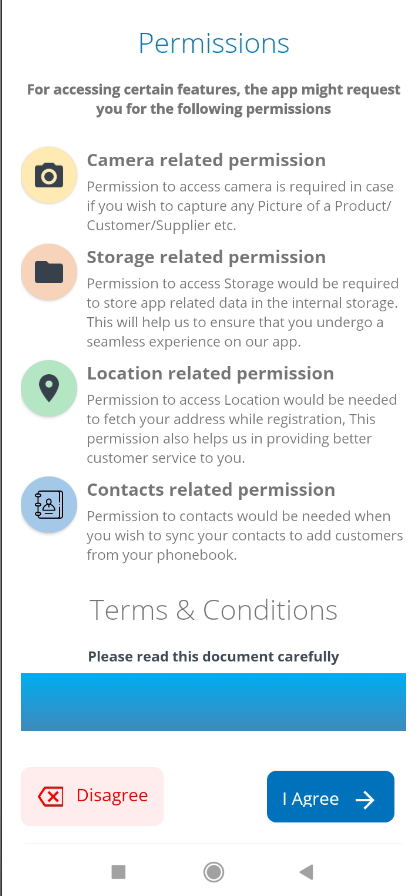
(Figure 3.1 - Allow permissions & Agree terms and conditions)

(Figure 3.2 - Allow location permissions)
Step c : Select type of business Vertical and Business Template.
Select type of business vertical as Retail from Retail , Restaurant and Distribution.
By default, there are four business vertical type options available in the app - Retail, Restaurant, Filling station and Distribution. Select your business type as Retail (See figure 4 below).
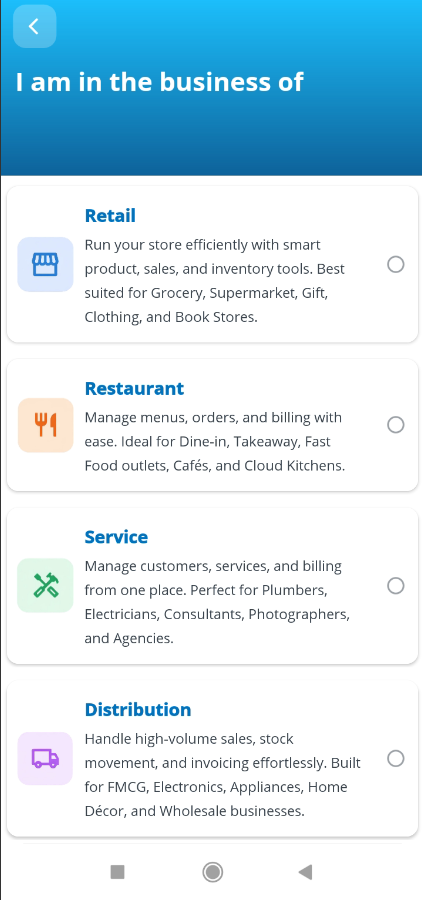
(Figure 4 - Business Vertical Type )
Step c : Select type of Subscription from Go,PRO & Max.

(Figure 5 - Subscription Plans )
Choose Plan
The Choose Plan screen allows users to select a subscription plan that best fits their business needs. Users can compare available plans, switch billing cycles, and understand the features included in each plan before subscribing.
This screen is designed to help businesses scale gradually—from basic operations to advanced, multi-location management.
Accessing the Choose Plan Screen
The Choose Plan screen is displayed:
- During initial onboarding, or
- When upgrading or changing an existing subscription plan.
Use the Back arrow at the top-left to return to the previous screen if required.
Billing Cycle Selection
At the top of the screen, users can choose their preferred billing cycle:
- Monthly
- Annual
How it works:
- Tap on the desired billing cycle.
- All plan prices automatically update based on the selected cycle.
- Monthly billing is selected by default.
Available Subscription Plans
1. Go Plan (Free)
Best suited for: Small businesses or startups getting started with basic billing and inventory needs.
Price:
- Free
Key Features:
- Inventory Adjustments
- Agent Management
- B2B Customers
- B2B Suppliers
- B2C Customers
- Barcode Scanning
Usage Recommendation:
Ideal for users who want to manage essential operations without any subscription cost.
2. Pro Plan
Best suited for: Growing businesses that require real-time access and order management.
Price:
- X Amount / Month
- Free trial for 15 days
Includes everything in Go Plan +
- Swiggy / Zomato Integration
- Table Creation
- Table Orders
- Enhanced order handling features and others
Usage Recommendation:
Recommended for restaurants and retail stores managing dine-in orders and online aggregators.
3. Max Plan
Best suited for: Businesses operating across multiple locations with advanced control needs.
Price:
- X Amount / Month
- Free trial for 15 days
Includes everything in Pro Plan +
- Agent Role Management
- App User Permissions
- Advanced access control
- Multi-location business management and others
Usage Recommendation:
Ideal for enterprises requiring detailed role-based access and centralized control.
Navigating Between Plans
- Use the left and right arrow buttons on the screen to scroll between available plans.
- Each plan card highlights its name, description, price, and included features.
Selecting a Plan
- Review the features listed under each plan.
- Choose the plan that matches your business requirements.
- Proceed with the subscription or trial (if applicable).
Note: Pricing and features may vary based on the selected billing cycle.
Key Notes
- Free trial (15 days) is available for Pro and Max plans.
- Billing cycle changes affect the subscription amount.
- Users can upgrade plans anytime based on business growth.
Step d : Select the option 'Professional' (See figure 5 ).
Keep the option '15days Free Trial' checked if you want to explore the app to understand how it works and click on proceed. However, if you are configuring the paid version of the app, you need to uncheck this option and enter the subscription code
Step e : Enter registration details - Company Name, Owner Name, Email Address, Mobile Number, User-name, Password, Confirm Password, Currency, Address and Next (See figure 7, 8 &9 )

(Figure 7 - Registration details for new organization)

(Figure 8 - Registration details for new organization)

(Figure 6 - Registration details for new organization)
All the fields which are underlined by red color in this page are mandatory.
Step f : When you tap Verify, it starts registering your subscription and an activation code will be emailed to the email id and sms to the mobile number you entered in the Registration Details Page.(See figure 9 below).
(Figure 7 - Sending activation code to registered Email / Mobile Number)
Step g : Enter the activation code and tap on Activate .
Note: If you do not get any code on your mail id or mobile number, tap on Resend Code.
Activation code through SMS is only for Indian mobile numbers.
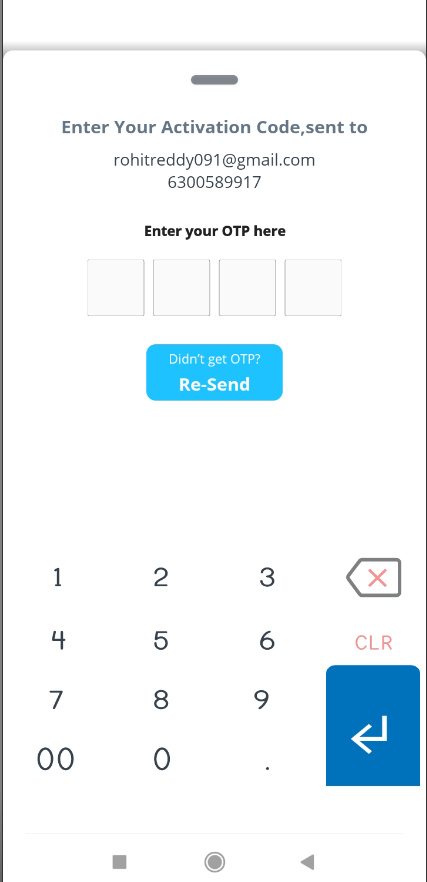
(Figure 8 - Activation code)

(Figure 9 - Downloading Data from Back office)
When the set up procedure gets completed, it will redirect you to the inventory setup screen .

(Figure 10 - Just Billing Home Screen)
Up on Successful registration of the Business vertical and Template then you will get an welcome subscription Email which has the information of your subscription details like Portal Url, User Name, Password, Data Import Url, Organization Code and Account ID.This Information is very important for you to reinstall Again in any case where you are forced to Uninstall and reinstall the application for some reason.
(Figure 11- Just Billing Welcome Email)
(Figure 12 - Just Billing Environment Details)
Case 2 : Portal registration for Registered Organization (this is for users who already have a Just Billing Android subscription)
Step a : Select Registered Organization.
(Figure 13 - Select Already registered with JB option)
Step b : Click on I Agree button to allow app permissions.
Enter Organization Code, Account ID, Branch Code and select Proceed. The Organization code and Account ID will be sent to your email id and mobile first time when you have subscribed (during first time registration).
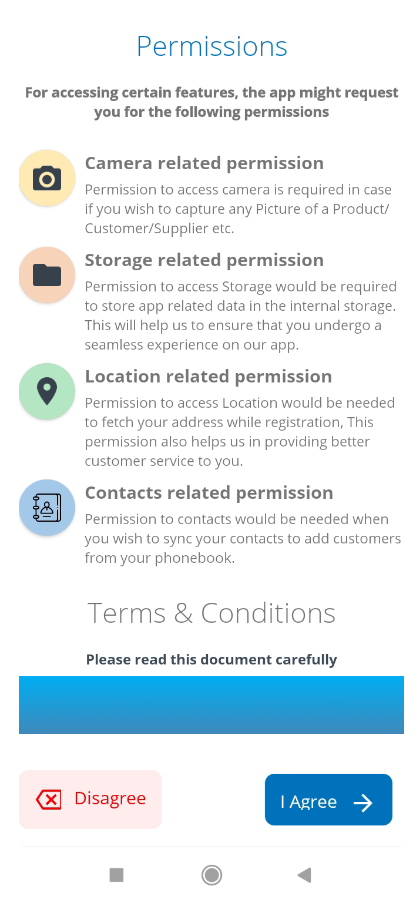
(Figure 14 - Agree to allow permissions)
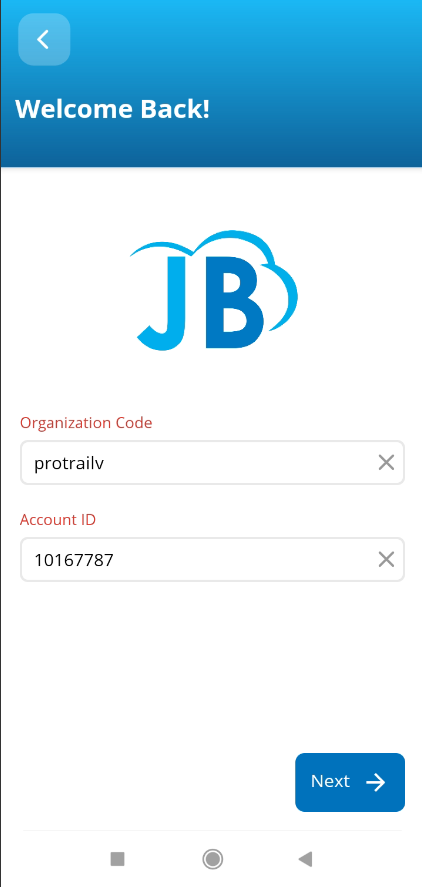
(Figure 15 - Add your domain details)
Step c : When you tap on next, it opens the screen with new user and existing user Details.
Enter login with previous registration details and proceed next .

(Figure 16 - Login details for existing organization)
When you tap on Next, the app starts registering your subscription.
Step d : After entering registration details it will fetch you with remaining days. In case of free trial by default it will fetch remaining days. Click on Proceed .

(Figure 17 - Fetching Subscription days)
Step e : Upon Proceeding to next then it will ask do you want to download transnational data if you want to download previous transaction data then click on OK, Then it will automatically complete the registration .

(Figure 18 - Download transactional data)
Step f : Once you click on OK, Then it will automatically complete the registrationDownloading feed/demo data from back office is in progress .
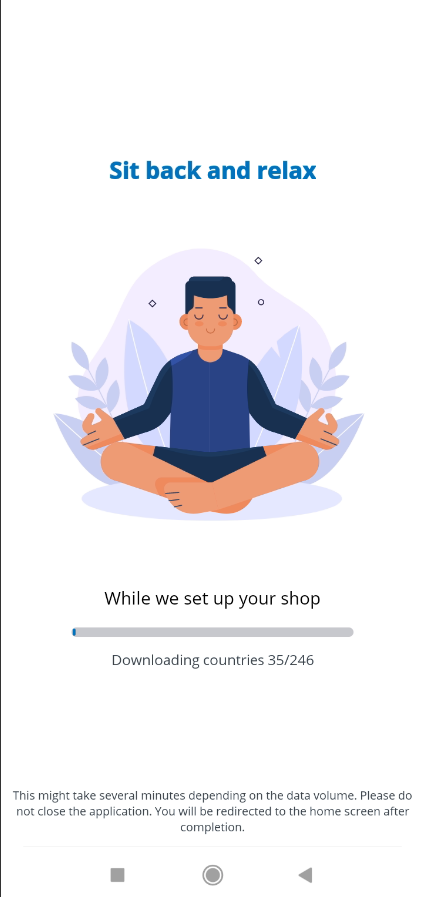
(Figure 19 - Downloading transactional and feed data from cloud)
Step g : After successful registration it will open Just Billing Home page dashboard .
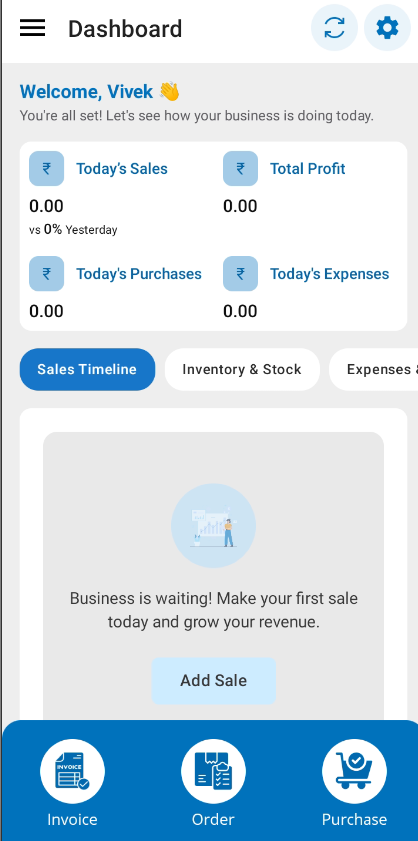
(Figure 20 - Just Billing Home Page Dashboard)